Use an absolute HTTPS image URL that a recipient’s mail client or image proxy can retrieve without an interactive login. Give the image intrinsic width and height, useful alt text, and a responsive presentation. Keep essential information in normal text, then test the actual message with images both enabled and blocked.
An email image is a separate web request
When an HTML email is sent, the email contains both a markup (an img tag) and a URL. The mail client determines if/when to download the URL, how to handle the URL's contents (by proxying/caching), and if/how to display the image associated with the URL. An HTML email previewed within a browser merely demonstrates how the browser handled its own network and security policies.
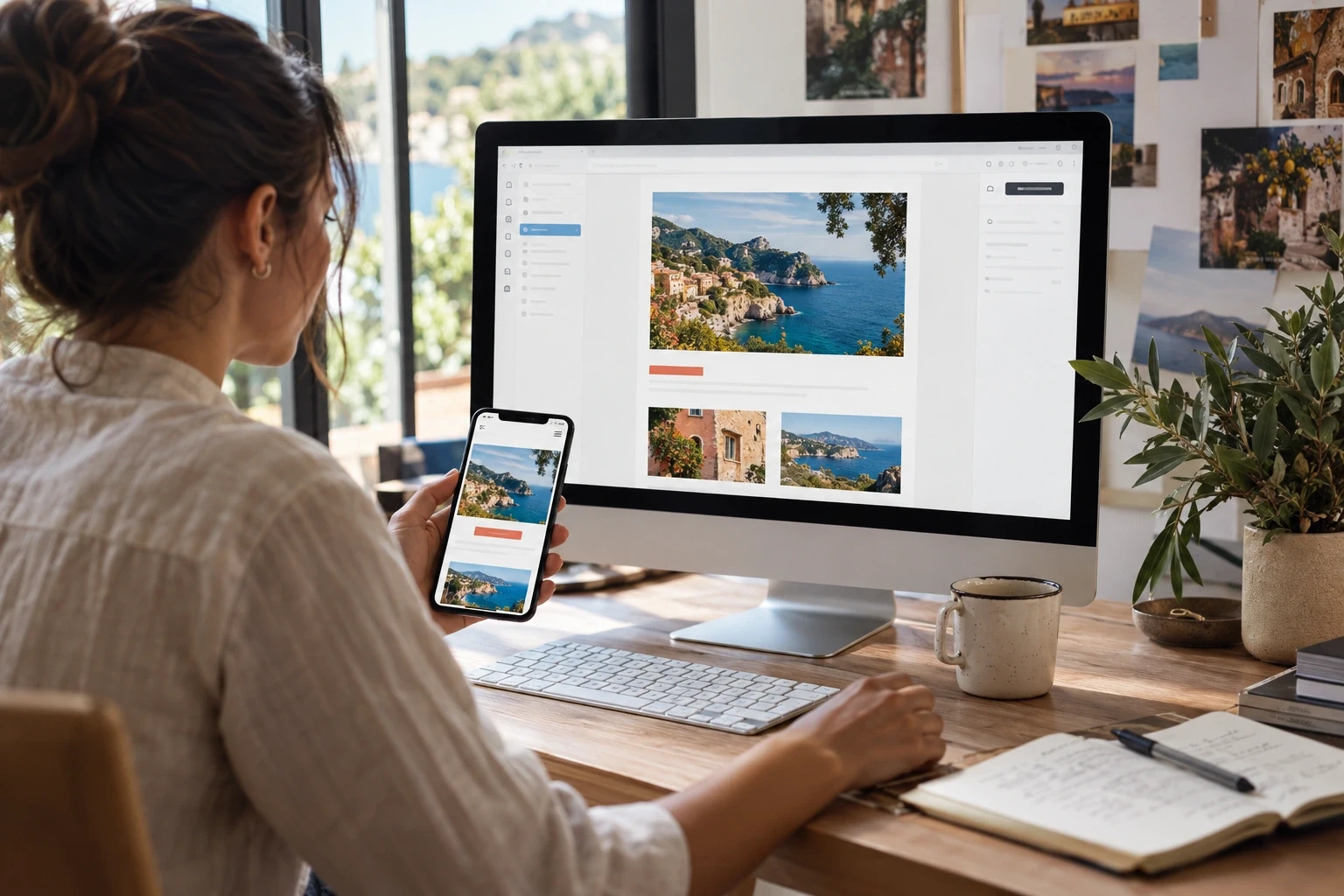
The remote image needs to be accessible in the recipient’s environment. When the URL leads to a login form, user account page, a localhost, or an expired preview version, then the mail client will likely not have the same capabilities to perform the actions that a human user could. Therefore, use a direct image resource that is able to be downloaded using your intended delivery route.
Also, because image loading is not a good way to determine whether someone has opened an email, it's not a accurate indicator of when a person opened an email. Apple Mail Privacy Protection can block the IP address of the sender and download remote images in the background. Gmail provides information on how it allows users to control what images they see in their emails, as well as how Gmail scans emails for viruses and other potential threats. These are product-specific settings, rather than universal email rules. [3] [2]
What happens after send
- 01Message arrivesThe mailbox stores the HTML and its referenced image URL.
- 02Client policyImages may be shown, blocked, proxied, or fetched privately.
- 03Image requestThe client or proxy requests the URL without an interactive page workflow.
- 04Render or fallbackThe image appears if available; text and alt remain important otherwise.
Use an absolute HTTPS URL for the image itself
When creating an email, do not rely on an image file's relative path (e.g., images/banner.png) because there is no way to know what the directory structure will look like when the recipient opens the message. Instead, use a complete HTTPS URL to locate the image. Do not use a user-specific URL that works only while you are signed into your account.
The URL will provide you with the byte data for the image itself, and not an HTML page containing a viewer of the same image. You can verify this by opening the URL in a Private Browsing mode of your web browser, and then viewing the response from that request. If the ultimate response is either a log-in page, a sharing page, or a series of redirects that lead to an HTML page, then you have two options: find a supported direct image URL, or find an option to download the image as an attachment.
HTTPS provides protection of the request during its transit. Most modern mail systems require this type of protection. However, HTTPS does not provide privacy to the public URL. Thus, any person who can find a way to access the public URL will also have the ability to retrieve the image. Therefore, you should use an approved private collaboration system for storing confidential materials, as opposed to providing public access for ease.
Reserve layout space and size the image deliberately
The width and height attributes define the intrinsic ratio and reserve area prior to the completion of the download process for the image. MDN states that browsers will utilize these measurements to determine the image's aspect ratio and minimize the amount of layout disruption caused by the image being downloaded. Since email clients differ in how they render page CSS, the attributes provide a base for consistent rendering, but do not necessarily ensure consistency across every platform. [1]
See one campaign image adapt to a wide email and a mobile inbox
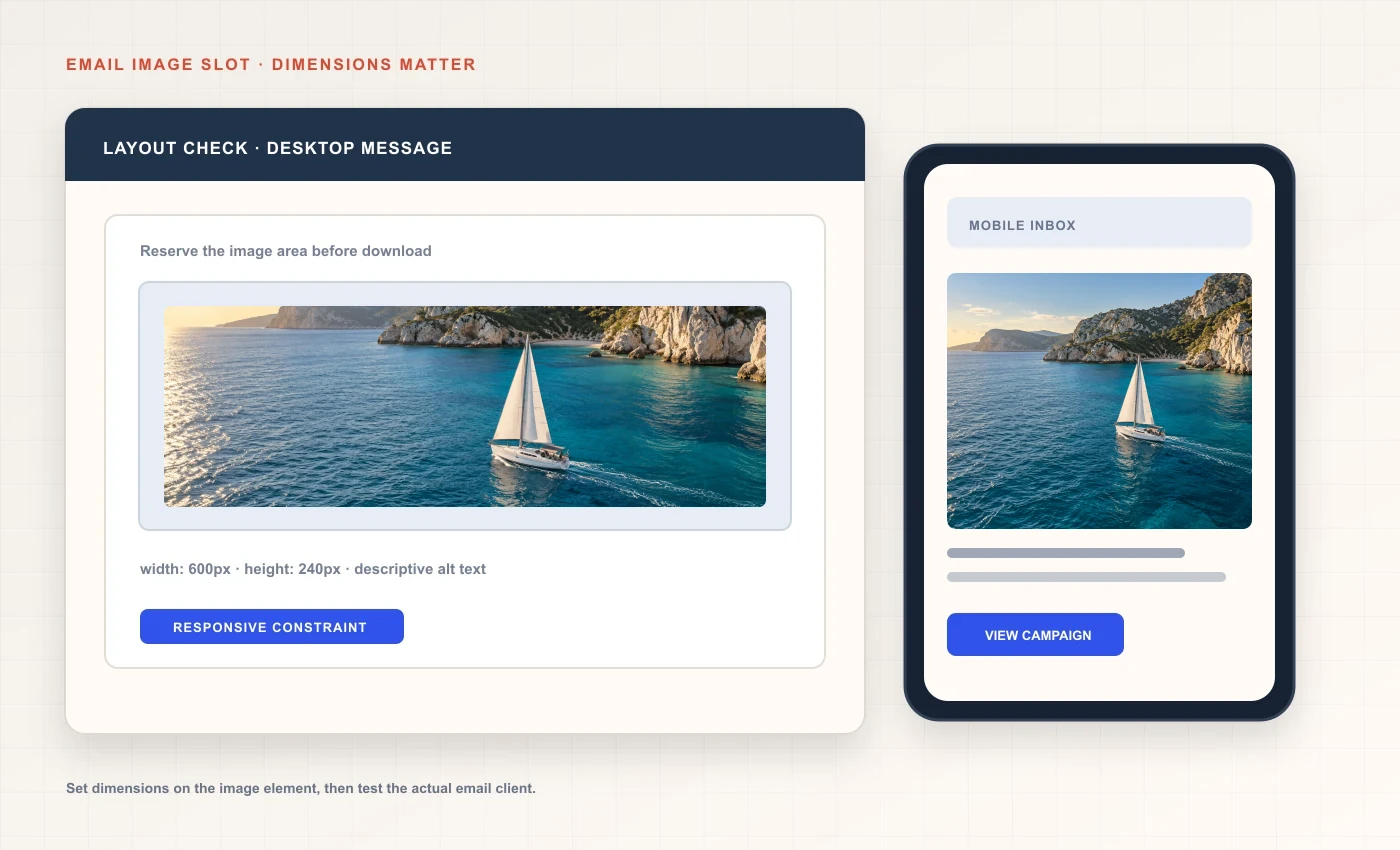 Responsive email image placement
While a larger original image may be shown at a narrower width in a mail client, the client must download the entire original image file. Create an appropriate version of the image for the expected width, and preserve a high quality version of the original image in your system. Don't transmit a large, high-resolution image to a recipient whose email column will only allow them to see a smaller portion of it.
The width and height of an image should be specified using pixel values within the markup. After setting those dimensions, apply a very conservative inline style that allows for fluid scaling if the tested client supports fluid scaling. If you are sending a single-column message, you may wish to consider using max-width:100% and height:auto to ensure that an image does not overflow onto another line when viewed on a smaller screen. However, there are no guarantees as to whether or not these styles will work on all email clients. You should test them on the specific email clients you intend to use.
| Choice | Why it helps | What to verify |
|---|---|---|
| width and height attributes | The renderer can reserve the intended aspect ratio before load | The file ratio matches those values |
| A source sized for the email column | Reduces unnecessary transfer and oversized display | Text and detail remain clear on high-density screens |
| height:auto for fluid scaling | Preserves the image ratio when its width shrinks | The target mail clients retain the style |
| A single-column layout | Avoids complex width interactions in small viewports | Long text and links wrap acceptably on a phone |
Write alt text that gives a useful fallback
Alt text is the text used to describe an image when that image is not available to view, and also to be read out loud to users who use assistive technologies. MDN suggests that the best way to write useful alt text for images that have some kind of significance is to create alternative text that has relevance to the user, and if the image serves as only a decoration, then you can use an empty alt attribute. In addition to creating alternative text for images, creating a descriptive file name can be helpful in providing the user with more information about what is contained within the image. For example, if you were to name your image file "hero-final-v4.jpg," this would not provide the user with any useful descriptions of the content in the image. [1]
In cases where the image provides critical information (such as dates, prices, or follow-up actions) then include those details in your email's body text. While alt-text can be used to provide context for what is shown in the image, you do not want alt-text to serve as the only way someone understands a promotional offer or instructions. By including these details in your body text, you will help ensure your message remains clear even if remote images cannot load or if a screen reader is being utilized.
Use alt="" for a decorative divider or background flourish, so as not to create extra clutter in your reading order. When you have an image that serves as either a button or a linked banner, write about what happens when someone clicks on it (the action) or where they will go (the destination) instead of simply stating "image." Make sure to also give the surrounding link a clear, accessible label.
Keep the email meaningful when images are blocked
Recipients have the option to receive their email as plain text, display messages without external images, and/or read messages from senders whose images are blocked. Gmail provides a way for users to configure their account to require confirmation prior to displaying external images. Additionally, Gmail may notify a user when an email or sender seems unusual. All of this content is available in the original document as well as the questions that were used during the review process. [2]
A fallback should not just say "view this image." State what the recipient needs to know and give them a normal link if the image is important. If the email is for a design review, write the version name and the question as text, so that if the screenshot doesn't load, the task will still be available. client review handoff guide
A campaign message should still make sense with remote images disabled
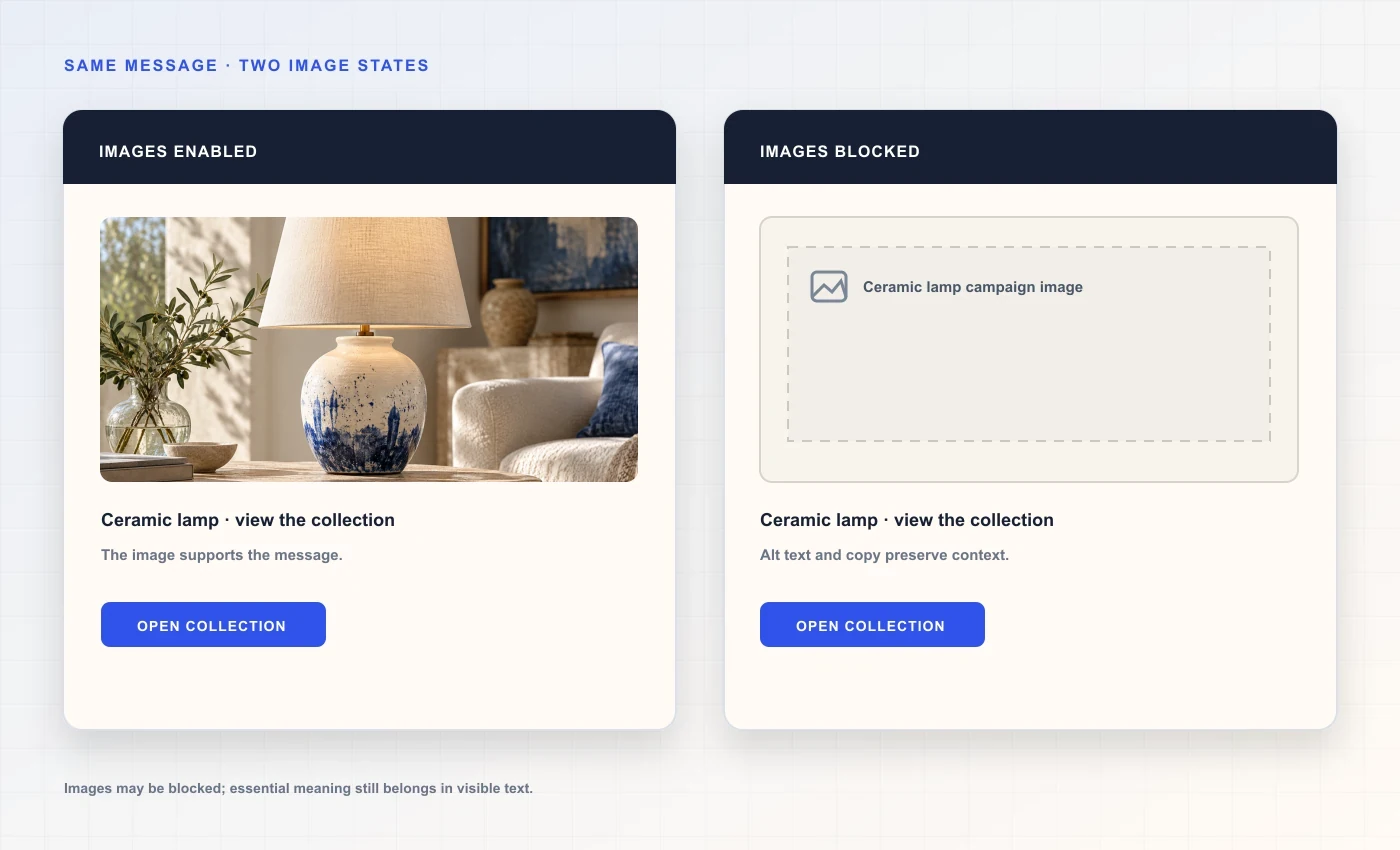 Ceramic lamp email: enabled and blocked
The email will be sent with images disabled, but it will still identify the sender, explain why the message is being sent, display what you want done, and contain a working text link. This way you can see how much your design relies on text that can only be read if images are enabled, and you will know if there is unneeded space left in the layout due to remote images not loading.
Design the message for both states
- 01Image onThe remote graphic adds context or visual polish.
- 02Image blockedAlt text explains the content or decorative image stays silent.
- 03Text always presentThe request, key information, and action remain understandable.
Understand what a mail client may do with remote content
The mail client can request an image from the recipient's computer/device, utilize an image proxy, cache a downloaded version of the image, seek authorization to retrieve the image, or deny access to the image due to the mail client's internal policies. The sending server will see a request for the image from whichever delivery method ultimately connects with the sending server. This delivery method could potentially not be the recipient's browser or network.
The description provided by Gmail's support documentation regarding user controls on external images and its scanning of images for potential suspicious content is applicable to Gmail. Similarly, Apple describes Mail Privacy Protection as providing anonymity for the recipient's IP address and downloading remote content privately in the background. Both of these descriptions refer to the respective product and setting, rather than each individual mailbox. [2] [3]
Don't guarantee accurate open tracking via remote image requests. Proxies may pull images prior to emails being read by individuals, and users may view emails prior to images being loaded. When you require data regarding engagement, adhere to the organization's privacy and consent policies and employ a measurement technique which provides an accurate account of its limitations.
Choose remote hosting or an attached image with intent
A remote image can help make the email payload smaller and allow you to update an asset for subsequent requests; however, you will need to keep the URL active and the recipient will likely be prompted to load the image. A Content-ID attachment is sent with the message but will increase the size of the message and require both the sending system and receiving client to correctly process the MIME structure.
An alternative approach, using either a Data URI or a large Base64 encoded string directly within the HTML, cannot be relied upon as a viable solution to the problem of providing a workaround for client policy. Many mail systems will either strip out or modify content, which can result in an increased size of the message while not addressing whether the receiver wishes to have images displayed. It is recommended that you use the mail system's supported means of delivering your message, and then verify how the message appears when delivered.
A private image service can only allow access to images if the mail client can complete the authorization process. The majority of HTML emails are unable to perform interactive login or enter a password when requesting an image. If you have confidential screenshots, you should include a link to an authorized/authenticated page in plain text instead of attaching the protected bytes to the email.
| Approach | Strength | Limit to account for |
|---|---|---|
| Remote HTTPS image | Can keep message size down and update at the source | Needs reachable URL; client may block or proxy it |
| Content-ID attachment | Image data travels with the message | Email size and MIME handling vary by sending system |
| Image-only message | Can match a fixed visual design | Poor fallback, accessibility, and blocked-image experience |
| Authenticated share page | Can add a human access step | Usually cannot be loaded as a plain img src |
Build a simple, readable HTML message
The layout should be simple. Use a clear heading for each section, use standard paragraph blocks for your text, use a single column content table if required by the test templates of your email provider, and include an "img" block that includes the attributes for width, height, and alt. For the primary CTA, either create a simple text link or button; do not create an "img" block with no text alternative.
Email-specific HTML coding practices differ from the standard Web browser environment. Many email programs "sanitize" or alter the markup. The following example provides a foundation for development, but does not guarantee compatibility with all email systems. The example provides both a plain text representation of the request, as well as inline styles which will require verification in the end-user environment.
Where the sending system will preserve it, use a suitable document title. Do not create a dependency on a script, an external style sheet, or a web font for reading/understanding the message. It is easier to view and less likely to obscure the primary information with non-supported styles.
Set a privacy-aware image cache policy
A browser and/or an intermediary can store and use a single image as defined by its caching policies. If a long-lasting, publicly available image is used, it can minimize the number of times it has to be transmitted from the source; however, if the source changes, then any copies that have been received by a recipient or cached will not be updated. Decide upon the life-cycle of the URL prior to sending a message that could be forwarded.
Sensitive content is better served when the cache behavior is planned and tested with the service provider. HTTP caching semantics are defined in RFC 9111, while standard cache control directives and the behavior of intermediaries are described on MDN Web Docs. In addition to the header itself, the rules used by the server, as well as the behavior of any mailbox proxies used, may affect the overall behavior of the cache. Therefore, relying solely on the header to determine how each mailbox proxy will handle a request is insufficient. [4] [5]
A single time campaign image may have a longer public life than a private design review, however the image should not be changed without notice when the user is currently viewing the URL. When making material changes to an image use versioned names, if possible. If the platform allows for it, set a retention or expiration date for the private review links.
Do not reuse the same URL for a different review state
A recipient may continue to view an outdated version of an image from the time when the source changed. If you use the same address for both r03 and r04, then your email body will not match your visible screenshot. Use a versioned URL for all approved exports or provide a review page which indicates which version is being viewed.
A link expiring means that future requests for images contained within the email might no longer work when the email is still sitting in the recipient's inbox. When the amount of time that a customer can use the review process is longer than the amount of time that the link will be active (i.e. link lifetime), the customer may experience either a broken image or a requirement to provide additional information to access the image. On the other hand, if there is no expiration on a public URL, then that image will continue to exist after the confidential review process has ended.
For further information on signed links, cache freshness, revocation, and saved copies please refer to the image link expiration and caching guide. If the image becomes unavailable at some point, keep the text link as an alternative to the image.
Test the actual message rather than the source template
A preview of an email in your browser will allow you to see how it looks. However, the recipient of the email will see the email after it has been processed by the sending platform. This means that the sending platform may have inlined CSS, rewritten image URLs, added tracking elements, or made changes to the markup. Before sending out a campaign or handing off an email to a client, you should send a real test email through the mail system you have configured to accounts you own.
Verify how the message appears when images are enabled/disabled externally, within a small viewing area (narrow viewport), and in each of the email clients used by the target group. Verify the image, alternate text, links, dimensions, and fall back options. This project has not been tested in a matrix of Gmail, Outlook, Apple Mail, etc., therefore we cannot make claims regarding client compatibility at this time.
Record the date, mail client, device, account setting, and test results for every test. A result obtained with one version of an application does not imply the same results will be obtained with another version of that application, nor does it guarantee that the same results would occur under other tenant policy configurations. If the client is a contractual target, then perform the tests in their specified environment, or follow the prescribed rendering test procedures.
- 01
Send from the real delivery system
Use a test account and the same template path that production mail will use.
- 02
Inspect image-on and image-off states
Confirm the message still explains its purpose when remote images are not shown.
- 03
Check client and viewport
Record the actual app, version, operating system, account policy, and screen width.
- 04
Verify final URLs
Check rewritten links and image responses without publishing private tokens into logs.
Troubleshoot a missing email image systematically
If the image is empty, you can check if your final URL returns the correct image bytes, if it redirects to another page, and if your access token is still active by opening the final URL in an unauthenticated (signed-out) web browser. After checking those three things, you should check the source of the message you sent to see if your email service provider modified or removed the URL.
When you are able to access a web address directly from your computer, but cannot view it when using a specific email program, consider checking the settings of the email program regarding remote images, the company policies regarding remote image access, and if there is a proxy in place which allows you to connect to the host. When an image appears in a preview window in a web browser, but does not display in an email, before making changes to the file, compare the types of Cascading Style Sheets (CSS) and markup that each environment supports. Save the original message and take a screenshot of the issue. For additional troubleshooting information on how to resolve problems with images displaying correctly when linked via Markdown, see direct image response troubleshooting guide.
Do not bypass a recipient's setting for blocking images. Use only plain text and a regular URL link. If you need to keep the image private, then create an approved, recipient-authenticated review page and explain that it's a URL link as opposed to an embedded image.
| Check | Evidence | Likely next action |
|---|---|---|
| Final image URL | Status, redirects, Content-Type, and body | Use a direct supported URL or fix the origin |
| Sent HTML | Actual src after mail-platform processing | Correct escaping or rewrite in the template source |
| Client settings | External images blocked or prompted | Leave policy intact and provide a text link |
| Viewport layout | Image loaded but clipped or stretched | Adjust dimensions and verify the specific client |
| Access window | Link expired or needs an interactive gate | Use a suitable lifetime or human-facing page |
Finish with accessible text and tested fallback
A hosted image will enhance an email that can function without it. It can provide additional information, create a certain mood or atmosphere, or provide a visual reference. All of the essential components such as actions required, dates, review versions and decisions needed should be presented as text. When an image cannot be viewed, meaningful alt text describes the image to the reader. Decorative images should never impede the flow of reading.
Use an HTTPS URL that will always work for you, reserve space for images on your page with proper dimensions, and check how the email appears in the email programs that your customers use. Remember to keep in mind the actual accessibility and caching rules, since an image may look great in a browser but be unavailable to an email program or proxy server.
When you are reviewing a screenshot, please provide a version number along with a text link to the item that is being reviewed. If the image being shared contains sensitive information, then please use a private sharing channel rather than embedding the image via a publicly accessible URL for the sake of convenience in your design.
- The image URL is direct, HTTPS, and reachable without an unsupported login flow.
- Width, height, alt text, and responsive behavior are checked in the sent message.
- The text explains the message when images are blocked.
- The test records the actual client; untested compatibility is not implied.
Frequently asked questions
Can I use a private or password-protected image URL in an email img tag?
Only if the mail client’s image request can satisfy the service’s authorization mechanism. Ordinary email markup cannot reliably fill in an interactive password prompt. For confidential material, use an approved authenticated page link and keep the important context in the email text.
Why does my image show in a browser but not in an email?
The mailbox may block remote images, fetch through a proxy that cannot access the URL, or receive HTML instead of image bytes. The message may also have rewritten the URL or altered the markup. Inspect the actual sent message and test the final address in a signed-out context.
Do email clients support responsive image CSS?
Support can vary by client, application version, and account policy. Width and height attributes provide useful baseline information, and fluid styles may work in many environments, but the local project has not tested a client matrix. Verify the exact clients used by your recipients.
Does a remote image request prove the recipient opened the email?
No. Image proxies and privacy features can fetch content independently of a person viewing the message. Gmail and Apple Mail document different privacy behaviors. Treat remote request counts as an imperfect technical signal, not proof of a human read.
Should I host email images on my website or attach them?
A remote URL can keep the email payload smaller, while an attached content-ID image travels with the message. The choice depends on privacy, delivery system, size, and recipient client support. Test the real email source and use the organization-approved method.
What should alt text say for an email banner?
Describe the information or action the banner conveys, not its filename. If the image is decorative, use an empty alt value. Put any essential offer, date, instruction, or review question in normal text so it remains available when the image is hidden.
Sources and further reading
References are linked beside the relevant claims. Source pages were checked on the dates shown; product documentation and standards may change.
- [1]The img element ↗
MDN Web Docs · Checked
- [2]Turn images on or off in Gmail ↗
Gmail Help · Checked
- [3]Change privacy settings in Mail on Mac ↗
Apple Support · Checked
- [4]RFC 9111 — HTTP Caching ↗
IETF · Published 2022-06 · Checked
- [5]HTTP Caching ↗
MDN Web Docs · Checked
- [6]Send attachments with your Gmail message ↗
Gmail Help · Checked