Select a small batch
Choose up to ten JPEG, PNG, WebP or AVIF still images at once. If you select more than ten, the queue keeps the first ten and tells you how many were added. Each file is limited to 10 MB.
Select up to 10 pictures. Files are processed individually in the queue, with the results saved next to the original file name, and all successful rows are exported.
Uploads are temporarily unavailable.
filename · image ID · share URL · direct URL · processed sizeVerify that you have reviewed the preview and filename for each image prior to completing the export process. Only images successfully uploaded will be included in the.csv file. It is recommended that you retain a copy of all original images in your personal files.
The bulk image uploader is designed to allow users to process multiple images simultaneously and provide them with individual results for each image that was successfully processed. It does not convert a collection of images into a single image, nor does it create a webpage displaying all of the images, nor does it compress the original images into a ZIP file.
The difference between the use of filenames carrying contextual information and those which do not is significant. Filenames for images can contain details such as SKU (Stock Keeping Unit), color and viewing angle, while documentation sets can indicate which screen was documented or what release the documentation pertains to. Batch results provide access to both the original filename and the new ID, along with the two types of URLs associated with each item, allowing you to examine the mapping of the two before applying it to other applications.
The batch uploader will only allow a maximum of 10 still images to be uploaded at one time. Each image cannot exceed 10 MB in size. Images are uploaded in a sequential manner. There is no option for a user to pause the upload process, there is no ability to integrate the uploader into an online store, there is no long term guarantee of public-hosting, nor does it automatically detect duplicate files.
Choose up to ten JPEG, PNG, WebP or AVIF still images at once. If you select more than ten, the queue keeps the first ten and tells you how many were added. Each file is limited to 10 MB.
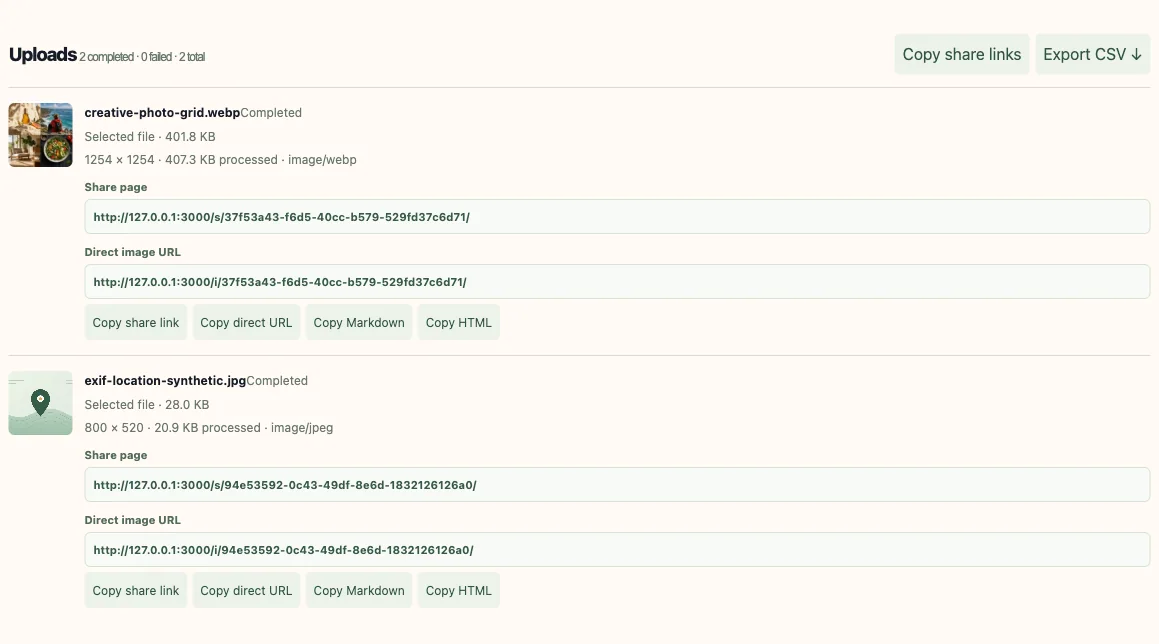
The queue keeps each filename attached to its own row and shows its thumbnail and file size. Files are sent one at a time, with a clear status for each item.
A queued row moves to Uploading and then to Completed or Failed. The server checks the bytes with an image decoder, rejects unsupported, corrupt, animated or oversized input, and returns the processed dimensions, MIME type and stored size. A failed file does not erase an earlier success.
Open each result and choose its share-page URL for a person or its direct image URL for an embed. Copy buttons also prepare Markdown and HTML snippets. A failed item displays its error and a Retry upload action; retry resubmits that file.
When at least one file has completed, Export CSV downloads the successful results. The export records the filename, image ID, share URL, direct URL and processed byte size. Failed rows are not included because they have no generated image identifiers or URLs.
An online seller is creating three types of product images: front, side and detail photographs for each of two colors of mugs. To reconcile these exported rows with the catalog at a later date, the filename may contain the product code, color and type of image. The following filenames are fictitious examples, they do not represent actual seller assets.
The URL's that have been exported need to be verified with the destination. Your store's import tool will likely require different column headers, the URL's to be publicly accessible, or have a required image field. The CSV file is a "manifest", it does not act as a product catalog importer. You should map each column in the CSV file to the field that your commerce platform is expecting, then perform a test import using a small portion of the data.
Follow the product-photo manifest workflow ↗| Product | View | Filename | Example direct URL |
|---|---|---|---|
| MUG-BLUE | Front | mug-blue-front.jpg | https://example.com/i/{id}/ |
| MUG-BLUE | Side | mug-blue-side.jpg | https://example.com/i/{id}/ |
| MUG-BLUE | Detail | mug-blue-detail.jpg | https://example.com/i/{id}/ |
| MUG-RED | Front | mug-red-front.jpg | https://example.com/i/{id}/ |
| MUG-RED | Side | mug-red-side.jpg | https://example.com/i/{id}/ |
A CSV file will allow you to see what each of your images are supposed to be linked to prior to importing them. This allows you to verify that the image matches the correct link. It is much easier to make mistakes with this process if you are copying each link individually, especially when the file names are very similar.
The application's export contains five columns: filename, image ID, share URL, direct URL, and size. Size represents the byte-count of the processed output that was saved to disk. Export only applies to successful uploads; there will be no URL row for a failed upload.
The export is a manifest, not a catalog importer. Open the export file in a spreadsheet or send it to another workflow, and then match each field in the export with the field required by the other system. Try importing a small number of items, and check if the other system can retrieve the image URLs directly.
filename,image ID,share URL,direct URL,size
"mug-blue-front.jpg","{id}","https://example.com/s/{id}/","https://example.com/i/{id}/","2048"
The example.com host and brace values are illustrative only. The export uses the current app address and includes IDs only for successful uploads.
The CSV Writer is designed to quote each cell, and when it writes a value that begins with a character that represents a formula, like =, +, -, or @, (including any leading white space), the writer adds a single quote before the value. This will help prevent formula injection into spreadsheets, based upon typical importing behaviors, however, there are many types of spreadsheet applications and they may treat the file differently. Therefore, it is important to inspect any values from untrusted sources prior to opening or importing.
The product/project ID should be consistent with the other parts of the filename (the variant and view) so that there's some consistency between how you refer to products/projects. An example of this would be mug-blue-side.jpg. Consistency is key when it comes to both spelling and using separators within the filename. When uploading files, the uploader will sanitize any path separators and control characters in the returned filenames, but it will not rename your uploaded file to fit your cataloging system.
JPEG, PNG, WebP, and AVIF are supported by the decoder in use today. In order to be decoded, a file name or browser MIME alone will not suffice. Rather, the server decodes the image bytes. Images with animation and SVG files are rejected. Maintain a compatible export for destination sites that do not support modern formats.
Review the destination's pixel dimension requirements prior to uploading. Image orientation will be applied during processing and each file will be re-encoded. Configured quality settings apply to JPEG and WebP files; PNG and AVIF files use their respective encoders. Returned bytes may vary from the original size or color processing.
Each input is restricted to 10 MB and the decoder will protect from any inputs larger than 40 million pixels. Compression of a copy may be useful if the file size is too big, however excessive compression may render product labels and screenshot text difficult to view.
Photographs may also have EXIF data, which includes information about the photograph's location (GPS coordinates). While the current re-encoding process does not maintain the original EXIF block, there are other methods for identifying locations and individuals including: visible signs; reflections; labels; and file names. These should be reviewed individually.
Keep the source files separately when their exact bytes matter. Compare filenames and thumbnails before starting; the batch tool does not automatically detect duplicates. Similar names such as front-final.jpg and front-final-2.jpg should be checked manually.
Keep the original images in a place you control. A generated link is not a backup of the source file.
Each file is submitted as a separate request in succession. The system tracks the status of each file (Queued, Uploading, Completed, and Failed). If an invalid input is received, it may fail after a successful completion of another image. However, the successful completion will remain on the list.
In a browser-based testing environment, a successful synthetic PNG generated a preview and a URL field. A corrupt text-based payload that had an image-type file name extension was rejected by the decoder as having an incorrect format for an image. The rejection of the second file did not affect the results of the first file. Resubmitting the failed file allows you to try again to submit the file. However, there is no guarantee of success in submitting the file, as long as the original issue (e.g., corrupted file, network connectivity problems) still exists.
The current page displays per file errors however it does not show byte by byte progress, provide for canceling/pausing requests and providing the ability to upload multiple files at one time. These options are not available on this page.
Example validation outcome using synthetic image inputs. It describes error handling, not a performance or reliability statistic.
| State or problem | What it means | Next action |
|---|---|---|
| A file stays queued | Earlier files in the selected batch are being uploaded first. The queue sends one request at a time. | Wait for the active row to finish. A queued item has not yet produced a server result. |
| One row fails while others succeed | A file can be invalid even when another image in the same selection is accepted. | Check the error beside that filename, replace or re-export that file, then use Retry upload. Completed rows remain available. |
| The file is too large or unsupported | The uploader accepts still JPEG, PNG, WebP and AVIF up to 10 MB per file, with a 40-million-pixel input limit. | Reduce the file or export it to a supported still format. Keep a separate original if exact source bytes matter. |
| The CSV omits a failed file | The export contains successful results only. A failed upload has no generated ID or URL to export. | Resolve the failed row, retry it and download a fresh CSV after it completes. |
| A URL opens as a page instead of an image | The share-page route returns HTML. It is not an image source for every embed. | Use the Direct image URL in a destination that can request the image bytes and is allowed to access them. |
| The recipient cannot access the URL | A generated link may require the right account, permissions or network access. | Check the link from the destination and recipient account before relying on it. |
This tool returns a separate share URL and direct image URL for each successful file. The CSV helps preserve those pairs alongside filenames.
A gallery is one page containing a collection of images. The bulk uploader does not create a public gallery URL; each result is an individual image record.
A ZIP is an archive of files. The batch tool returns individual image records; it does not package files into a ZIP archive.
A CSV is a text-based list of fields and rows. The export is a manifest for review or compatible import; it does not publish to an ecommerce platform.
Signed-in users can search filenames, sort records, create collections and apply tags in the image library. See the features overview and image workflow examples for the available controls.
Understand what expiry and caching can change ↗Create a few different views of the products, use the SKU as the name of each view, and make sure that you have compared your CSV file to the row in the catalog prior to importing. You will need an externally accessible URL for images on your store front and you will need to approve all of the fields that are allowed to be imported.
Read the product-photo manifest guide ↗Collect all the URL's of the editorial images. Maintain a single list with the file name of each image. Verify that the publishing system allows for the file format. Also verify that the publishing system will be able to retrieve the URL. Confirm that the captioning and alt-text of each image are handled independently.
Review hosted-image compatibility basics ↗For documentation, you need to prepare screen shots/diagrams and then associate every URL with its corresponding source name. You should verify the response content type and permissions of the target environment prior to including a URL in your site/README.
Troubleshoot image responses in Markdown ↗Send a link manifest to a coworker to review the assets for your campaign. Label the files with the name of the campaign and the version number. Don't use a hidden URL as a form of access control for materials that have not been released.
Compare unlisted and protected sharing ↗Keep the original filename beside each preview link during an asset handoff. For a client review, choose a human-facing page when it is available and explain which image revision the client is viewing.
Plan a client image handoff ↗Yes. The file picker accepts multiple files and drag-and-drop can add a set. The queue accepts up to ten from one selection; if you choose more, it keeps the first ten and reports the limit.
Up to ten files are added for one selection. Each file is limited to 10 MB before image processing. Check the file-size and image-count limits shown beside the uploader before starting a batch.
Each successful file gets its own image ID, share-page route and direct-image route. Failed files do not receive links. Test the recipient’s access and destination before relying on a generated URL.
Yes, after at least one file succeeds. The CSV contains filename, image ID, share URL, direct URL and processed byte size. It includes completed uploads only.
The batch workspace can copy all successful share-page URLs together. For direct URLs, use each row’s Copy direct URL control or the CSV export.
The failed row shows its own message and retry button. A failure does not remove earlier successful results, so you can correct one file without restarting the whole selection.
Create a filename-to-link manifest for a small set of still product images. The CSV does not connect to Shopify, WooCommerce or another catalogue; check the store’s import fields and whether it can access the chosen URL.
Those still formats are accepted by the current validation pipeline, and you can select different supported formats together. Animated files and SVG are rejected.
The upload response retains a sanitised original filename in its result, and CSV export places that name beside the image ID and both URLs. Use consistent SKU, colour and view labels before preparing the batch.
Signed-in users can search and sort owned images, create collections, add tags, and move records to or restore them from Trash. Moving an image to Trash does not erase stored bytes.
A fixed retention period has not been published. Keep a separate original and avoid using a generated link as the only copy of an important image.
The single-image tool shows one result and its links. The batch tool keeps several independent outcomes together, preserves each filename mapping, offers per-file retry, copies successful share links and exports the completed rows to CSV.