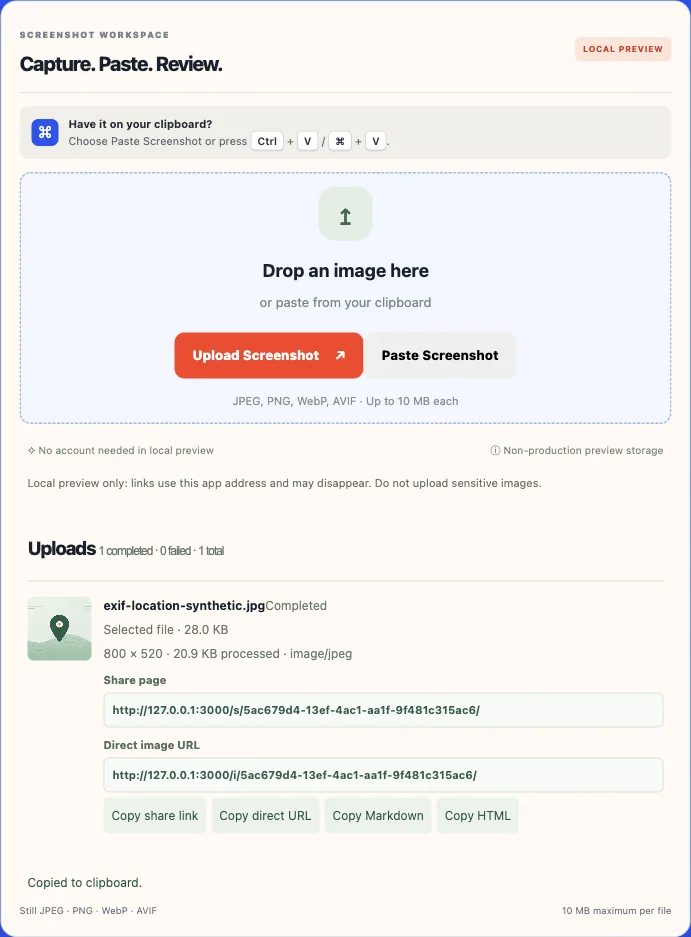
Screenshot to URL – Upload or Paste a Screenshot to Get a Link
Upload a screenshot you have previously taken, or use your computer's "paste" function to include a screenshot you've just taken. Then, view the image and create a hyperlink (URL) to the image that can be shared with others working on the same project.
SCREENSHOT WORKSPACE
Capture. Paste. Review.
JPEG · PNG · WEBP · AVIF
⌘
Have it on your clipboard? Choose Paste Screenshot or press Ctrl + V / ⌘ + V.
↥
Drop an image hereor paste from your clipboardJPEG, PNG, WebP, AVIF · Up to 10 MB each
↗ Direct URL for embeds◉ Share page for browser viewing
Uploads are temporarily unavailable.
Still JPEG · PNG · WebP · AVIF10 MB maximum per file
Use a share-page URL to view pages. Use a direct image URL to send the image to a compatible destination.
Win + Shift + S Capture a region⇧⌘4 Capture an area on Mac
Check the whole screenshot before sending, so you know there isn't anything personal on it. And make sure the person who will get your message can open the link.
Screenshot to URL provides a straightforward method of transforming a previously saved screenshot or clipboard image into an processed image containing links. This is especially beneficial in situations where a support request, bug report, or review requires a visual aid rather than a large attached file.
The uploader allows you to upload still JPEG, PNG, WebP, and AVIF files that are under 10 megabytes. When an image is accepted, it will be decoded, oriented, and then re-encoded by the server. Re-encoding may remove metadata from the original image, however, it cannot mask names, private details, or secrets contained within the pixels. You cannot upload animated images, SVG files, or corrupt files. After being processed, the system will return information about the dimensions, format, and stored size of the final product. These attributes can vary from the file you chose to upload.
A generated address has value only if the person or location can access the image. You should verify both the viewing page and the direct image response in the environment you intend to employ them.
Product capture · generated sample imageThe capture shows the processed dimensions and both link formats. The image is generated sample content.
FROM CAPTURE TO CONTEXT
How to Convert a Screenshot to a URL
A link is only a single element in an effective report. Document the current status, examine the information presented by the image, and provide sufficient written background for someone else to proceed.
01
Capture only the useful area
First close out all of your private tabs and notifications. A crop of an image will help focus on the relevant detail, however make sure that you check the edge of the crop to ensure that nothing that you wanted to remove remains visible. Show the application, control or error which explains what is wrong with the issue.
⌖
02
Paste or upload the screenshot
The Paste Screenshot action, or using the file picker is how you can use the clipboard to read images. However, reading the image from your clipboard requires browser support, a secure connection, and your permission. If these are not available then saving and selecting the file remains as the last option.
⇧
03
Review the processed image
Please wait until the process is completed. Ensure the image is correctly oriented and that small text can still be read. The processing creates a new encoded image and may delete metadata that was present in the original file; however, it will not remove any name, secret, or private information that is visible within the pixels of the image.
◉
04
Choose the right URL and add context
Create a copy of the share page for someone who requires a viewing page. Create a copy of the direct image URL for Markdown, or an HTML image element, if the target can retrieve it. Provide steps to reproduce, expected result, actual result, and test the link from a separate signed out session prior to submission.
↗
CAPTURE ON YOUR DEVICE
How to Take a Screenshot on Windows, Mac, Android and iPhone
Device shortcuts are dependent on the hardware of your computer, what version of your operating system you have, and the settings you have established for your computer. The following instructions are provided by device makers to show you how to use some of the more frequently used shortcuts. If a shortcut does not work as expected, refer to your device manufacturer's help pages.
01 / WINDOWS
Windows
To launch the Snipping Tool in an overlay format (allowing you to select a region of your screen, an entire window, or your whole screen), simply press Windows + Shift + S. Once you've made your selection, the captured image will be placed onto your computer's clipboard, so you can either paste it into another application that supports images, or use the Snipping Tool itself to create a file containing the image. Additionally, you can access the Snipping Tool by searching for it on your Start menu and choosing a specific capture mode.
The Shift + Command + 3 command takes a picture of your computer screen; the Shift + Command + 4 command will allow you to choose what part of your computer screen to take a picture of; and the Shift + Command + 5 command will open up your screenshot options. Screenshots are typically saved in the area you have chosen. If you wish to save a screenshot onto your computer's clipboard rather than in the chosen area, simply add the Control key to the shortcut commands listed above.
Hold down both the Power button and the Volume Down button simultaneously. On some devices you will be able to take a screen shot by pressing and holding the Power button, and depending on your device manufacturer there may be different ways to do this. You can find the image you took in either Photos, Gallery or the Screenshots album. Select the image from the browser's upload picker.
On your iPhone, if it has Face ID, press the side button and the volume up button at the same time. If your iPhone is older than Face ID, you will need to press either the side button or the top button and the Home button, based on which one is on your iPhone. For iPads, you can use the top button along with either of the volume buttons or the Home button on older models. Once you take the picture, save it to Photos. Then, select the picture from your Photos using the file picker.
Clipboard capture and a saved image are different paths.
A shortcut for taking a screenshot can either put an image into your computer's "clipboard," save a file of the image, or give you the option to do both. This website does not capture video from your screen; it only receives the static image that you select or paste.
A PRACTICAL EXAMPLE
Share Screenshots in Bug Reports and Support Tickets
A snapshot of the screen is an excellent way to capture what was going on when a failure occurred. However, most snapshots do not explain the sequence of events leading up to the failure. Combine your snapshot with a brief explanation of the environment in which you were working and what you expected to happen, so that someone else may be able to recreate the problem.
The checkout example here is fictional. Its URL is reserved for documentation and is not an uploaded file.
Example browser and operating system; replace with what you actually tested.
Steps
1. Add a product. 2. Enter shipping details. 3. Select Continue.
Expected
Delivery choices appear.
Actual
The button stays disabled after valid details are entered.
Screenshot
https://example.com/images/checkout-state.pngReserved example address; no real image is hosted here.
TWO URL TYPES
Screenshot Share Link vs Direct Screenshot URL
The link will need to correspond to the location that you intend to put it. Although a human-readable page and an image response can each point to the same uploaded file, they represent distinct types of resources.
Choose the URL that matches the destination
Question
Share-page URL
Direct image URL
What opens?
An HTML page with an image preview and context.
The image resource, returned with an image content type when access is allowed.
For a person?
Usually clearer for review or a support handoff.
Can be shared, though some browsers show only the image.
Markdown image syntax?
Usually unsuitable because it is an HTML page.
Suitable when the renderer can fetch the URL and access is permitted.
HTML img element?
Usually unsuitable as the image source.
Suitable when the request returns image bytes and no access page blocks it.
Privacy?
Access rules must also protect the image endpoint.
Access controls and caching apply to image delivery too.
If a markdown image has an un-rendering (broken) image icon, or if it renders as a web page instead of an image, you can check the status code, content type, redirect, and access requirements for the image. The Markdown image troubleshooting guide will take you through each of these checks.
PAUSE BEFORE YOU SHARE
Check Your Screenshot Before Uploading
The entire screenshot may contain other sensitive information besides the actual error shown. Therefore, zoom in to examine the entire image (i.e. browser chrome, notification banners, and even seemingly irrelevant corners).
Redaction must occur prior to uploading the image. If the original image exists as a separate overlay, such as a dark box or blurred area, this is not secure. When editing a screenshot, create a new image file, open that new image file and verify its contents at its native resolution prior to sharing.
01
Account details
Emails, phone numbers, order identifiers, addresses and customer records.
02
Secrets and access
Password fields, API tokens, recovery codes, private URLs and authentication banners.
03
Surrounding context
Other tabs, open messages, notifications, internal product names and visible location clues.
04
Link access
A private image cannot be confirmed by a URL alone. A URL that isn't listed can be forwarded.
Confidential work requires using an approved, access controlled tool to deliver files and check how they are delivered. Passwords/expiration dates only protect against unauthorized access once the user retrieves a file from the server, but they do not prevent a user who has downloaded a file prior to expiration from having continued access. Read about password protection versus unlisted links and expiry and cache behavior.
WHEN SOMETHING DOES NOT WORK
Common Screenshot Upload Problems and Solutions
Check the browser, file and destination separately
Problem
Likely cause
What to try
Paste does nothing
The browser may not expose an image on its clipboard, the page may not be in a secure context, or permission may be denied.
Try the Paste Screenshot button and approve the browser prompt. If it is unavailable, save the capture and use Upload Screenshot.
The file is rejected
JPEG, PNG, WebP and AVIF still images up to 10 MB are accepted. SVG, animated images, corrupt data and images above the pixel limit are rejected.
Export a supported still image and check its size. The image data is validated, not just the filename.
The screenshot is hard to read
A full-screen capture may shrink when it is embedded or shown on a phone.
Capture the relevant window or crop before upload. Keep small interface text at a readable size in the destination.
The link will not open for someone else
The image may require a sign-in, permission or network access the recipient does not have.
Open it from a separate signed-out session and confirm that the recipient can reach the image route.
An image does not render in Markdown
Markdown image syntax expects an image response. A share page returns HTML and may display as a page instead of an image.
Use the Direct image URL only when the destination can fetch it and access is permitted. See the Markdown troubleshooting guide.
Private information is visible
Text, browser tabs, notifications and metadata can reveal more than the error you meant to show.
Before uploading, inspect the saved image at full size. Make any redaction in an image editor, save a new copy, then open and inspect that copy.
SCREENSHOT QUESTIONS
Frequently Asked Questions About Screenshot to URL
How do I turn a screenshot into a link?
Capture the relevant screen, then use Upload Screenshot or paste an image from the clipboard. After the server accepts and re-encodes the still image, review the returned result and copy the share-page link or direct image URL. Choose the share page for a browser view or the direct image URL for an embed, then check access from the destination.
Can I paste a screenshot without saving it first?
Often, yes. Copy the screenshot to the system clipboard, then use Paste Screenshot if the browser exposes clipboard image reading, or press Ctrl+V / Command+V while the page is open. Clipboard access depends on browser support, secure-context rules and permission. The file picker is the fallback.
Can I upload screenshots from Windows or Mac?
Yes, when the screenshot is saved as JPEG, PNG, WebP or AVIF and is under 10 MB. Windows Snipping Tool and macOS Screenshot commonly produce PNG files. This tool processes the image you select or paste; it does not capture your screen.
Can I create a screenshot URL on Android or iPhone?
You can choose a saved screenshot from the browser’s image picker on a supported mobile device. The hardware shortcut varies by device, and clipboard image access is not guaranteed on mobile browsers.
Can I share a screenshot without an email attachment?
A link can reduce attachment back-and-forth when the recipient can access it. Check your organization’s sharing rules and test the link from the recipient’s account before sending.
Can I use a screenshot URL in a bug report?
A share-page link can help a person inspect the image. A direct image URL is for destinations that fetch image bytes. Add reproduction steps, expected and actual results, browser details and only the minimum screenshot context needed.
What is the difference between a direct screenshot URL and a share link?
A share link returns an HTML viewing page. A direct URL returns the processed image bytes with an image content type. Markdown image syntax and HTML img elements normally need the direct URL, provided the destination can access it.
Can someone else access my screenshot?
Anyone who can reach an unprotected image URL may be able to open or forward it. Use an approved access control for sensitive material; an unlisted link alone is not confidentiality.
Why does my screenshot URL not open?
Check that the image still exists, that the recipient has permission, and that you copied the correct link type. Expiry, revocation or a sign-in requirement can also block access.
Can I delete a screenshot after uploading it?
The image library can move an image to Trash and restore it. Trash hides the image from the active library but does not permanently erase stored bytes.