For a small review, send a clearly named image or a secure share page with one focused question. For a larger set, use a permissioned folder or review tool that preserves version context. Keep the client’s feedback beside the exact image and confirm what access the recipient needs before sending.
Make the review decision easy to see
Teams often find themselves with multiple versions of a single screen (e.g., final, final-new, final-approved) in their emails. It's not a matter of the image file itself, but rather that there is no connection made among the specific version of the screen, what was being asked, and what came back as feedback. When these elements become disconnected, teams may approve the incorrect screen or re-visit an issue that has already been resolved.
Consider the handoff as a small review package. Provide every image with a stable identification, determine the decision required, and specify the date of completion or next action only if you have received confirmation from the customer. The customer should be able to tell if an image is a draft, a comparison, or the final product that is ready for signature.

This is a fictionalized version of a checkout redesign to demonstrate how to use this guide. I will use a fictional redesign as an example, rather than a client case study. Although this technique can be used with any type of graphic that includes annotations (mockups for websites, campaigns, products, annotated bugs), the proper sharing permission will vary based on the sensitivity of the content.
A review packet stays connected
- 01VersionIdentify the screen and revision being reviewed.
- 02QuestionAsk for the one decision that would unblock work.
- 03FeedbackRecord the response beside that version.
- 04DecisionMark accepted changes and what remains open.
Choose the delivery method before attaching files
Email attachments may be used when you want to send a short email that includes some (one or two) small, non-sensitive image(s). Gmail allows for up to 25 MB of email attachments per message. If you have larger files to attach, Google recommends you use Drive. This is a limit set specifically for Gmail users. Other email providers and managed accounts can have their own limits. [2]
The use of a shared folder works well if you need to provide the customer with multiple documents, a set amount of time to review them, and the ability to give specific users access to your files. In addition to providing the user with options to set up their own role (Viewer, Commenter, Editor), Google Drive also allows users to restrict who has access to the files in their shared folder (restricted vs. anyone with the link). Since the permissions assigned to a shared folder will determine how the individual files within that folder are treated by other users, it is important to confirm the current level of inherited access prior to setting up the shared folder. [1] [6]
Compare the revision that needs review with the one ready to approve
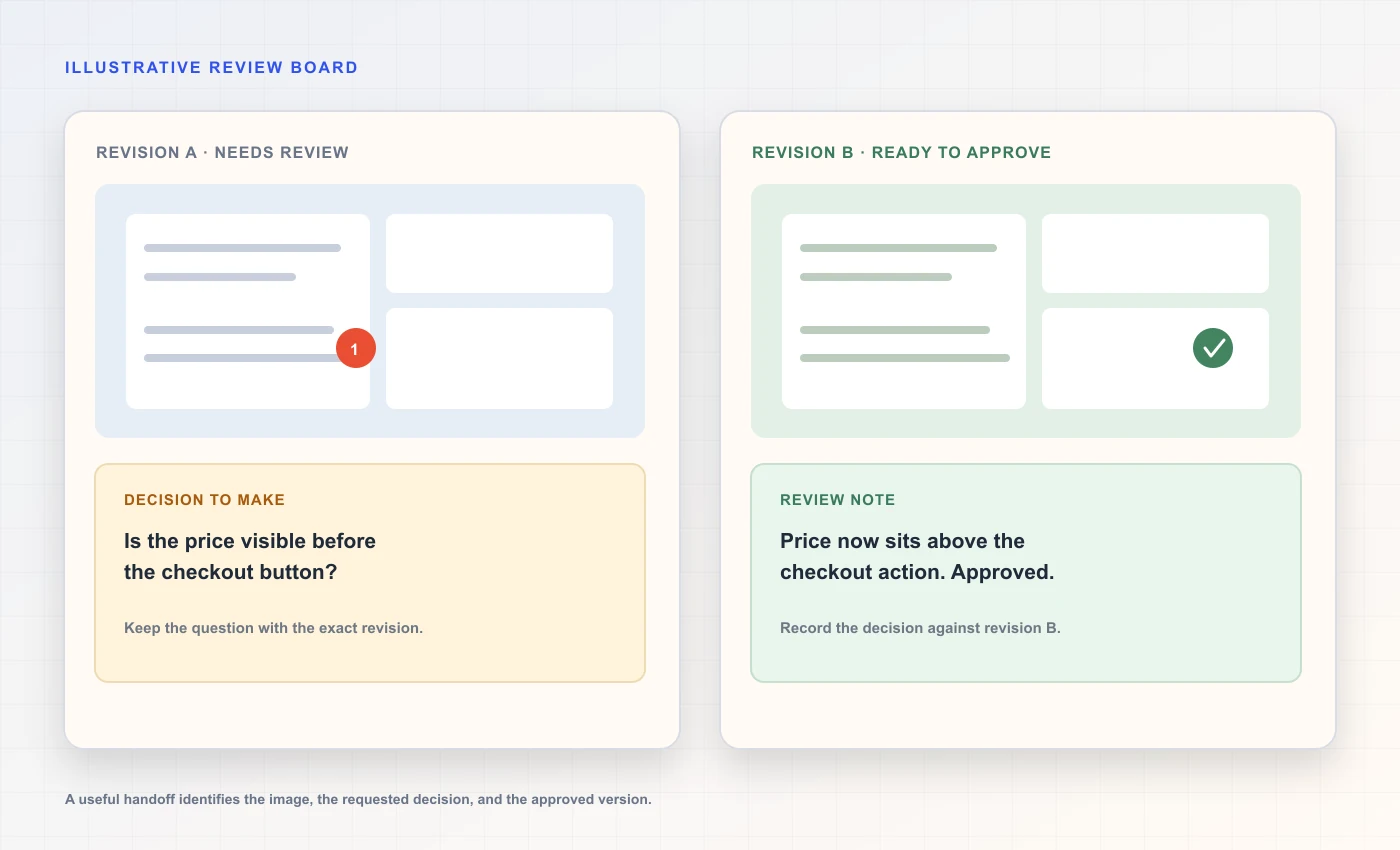 Two revisions, one clear decision
A dedicated link for sharing images makes it simple to view a screenshot with no need to download as an attachment. However, the URL used for this purpose can potentially be accessed by anyone who has received the link. A project management or proofing tool allows you to have all of your comments and approvals in a single location. It is important to utilize systems that your organization supports and verify the access control model being utilized by the system before you assume the link is private.
| Method | Good fit | Trade-off to check |
|---|---|---|
| Email attachment | One or two small images with a simple reply | Copies create version drift; account limits vary |
| Permissioned folder | Several assets or a named client team | Inherited permissions can grant broader access |
| Single share page | One image with a clear review prompt | A forwarded link may be accessible to others |
| Proofing or project tool | Comments, versions, and approvals need a record | Setup, account access, and client adoption add friction |
Prepare a small versioned set
Prior to sharing your images, determine what images are part of the same decision. When the client would like to view a side-by-side comparison of mobile and desktop layout versions, maintain them as separate files in a single review. When the images show different phases of a project, incorporate the revision number into every image's title. This way, when a user downloads an image, it will contain information about its place in the overall project even though it has left the shared viewing area.
A stable naming convention could include Project, Screen, Viewport, Revision: northstar-checkout-mobile-r03.png. You should avoid including your client's full name, confidential campaign codes, or personal information within the image's file name. The file name will allow another member of your team to associate the image with the design file without exposing any confidential data to anyone who views the link.
Keep the original and review packet separate. A screenshot may have been altered by being flattened, cut down, or commented upon for review purposes; however, the editable version of the design will remain within the system of record. It would be helpful if the review packet identified which is the primary source of reference, as this will help prevent comments from becoming competing specifications.
Set a review question that invites useful feedback
"Thoughts?" is very open-ended, however, it does not provide boundaries for the client. The client can give you feedback on color choices, when the development team needs to make a decision about whether or not the check out summary communicates delivery terms. Therefore, ask only one question that relates the feedback to a requirement or decision that the team can take action on.
In cases where you have made several independent decisions, then label each decision with a number and show an image next to each. You should only ask for comments regarding the organization (hierarchy), content (text), or actions of each decision when the issue being addressed is actually open for discussion. If a constraint has been established as fixed, state that it is; otherwise the client might waste valuable time discussing a previously decided constraint.
A request for review should also include a description of the type of response that would advance the process. An example of this is when a client confirms the chosen option or indicates that a label is ambiguous. Additionally, do not expect a reviewer to guess how an image works based solely on its appearance. Rather, provide details about what the image illustrates and what it lacks.
Use a revision history rather than a chain of finals
When feedback is received, make a small change list and then make your next screenshot. Have the previous review item visible for a while so that you can see how it was updated. Once you are done with the update, create a new version of the file using a different stable identifier. If you overwrite the only image on that URL, the client may be confused because their browser or mail client may still have a cached version of the older image.
Maintain a revision index including the revision number, the date the revision was made, a short explanation of what was changed in the revision, and whether the revision has been reviewed yet. Make sure to only include revisions that were actually sent. The revision index can be in the form of a shared document, a design tool, a project tracker, or even a file organization system. What matters most is that one individual has responsibility for updating the current status.
Use specific terms like draft, in-progress, for review, changes needed and approved, to indicate the current status of your project. If you require approvals from multiple departments (such as legal, accessibility, etc.), use separate tags for each department and do not use a single "approve" tag for all departments.
| Revision | Visible change | Question or state |
|---|---|---|
| r01 | Initial mobile and desktop layout | Does the delivery choice make sense? |
| r02 | Pickup label and order summary revised | Changes requested; confirm wording and totals |
| r03 | Approved copy applied; spacing adjusted | Client review requested; implementation not approved |
| r04 | Final export after written approval | Record the actual approver and date in the project system |
Control who can view, comment, or change the files
A link is a form of distribution, not a method of permissions. Prior to providing access to others, determine if they need to be able to see the content (viewing), provide feedback (commenting), save the content to their device (downloading) or make changes to the content (editing). Most often than not, the "viewer" role will suffice when allowing someone to view screenshots. When you provide access to a shared folder, the recipient may have the ability to move, remove, or create new files based upon how you have configured that folder.
Drive differentiates between sharing restricted to specified users, versus providing access to all users who have the URL. In addition, Drive notes that the permission levels on the parent folder can affect how a user can interact with the content within it. It's recommended that you test each individual document in the same way as the user you plan to share it with, particularly if the review folder has internal comments or work from other clients. [1]
For design that is sensitive in nature, we recommend using named accounts and our organization's approved sharing service. Even though a hidden or unlisted URL may be forwarded, copied to a support ticket, or visible in your browser's history; you may wish to view the comparison of image link access models for additional information on how these options compare.
- Grant the smallest role the client needs.
- Review folder inheritance and anyone-with-link settings.
- Open the item as a recipient in a separate account or session.
- Remove access when the agreed review period ends.
Keep confidentiality in the review process
A design screenshot can reveal previously unreleased products, internal pricing, user account details, user records, internal communication, or even a URL containing an access token. Before taking a screenshot, review the entire image and your browser's "chrome," then produce a flattened version of the screenshot with all confidential areas blocked out. Don't assume that because you are able to view each open tab on your computer that the client will be able to do so as well.
Consider how people will use the shareable link once you have emailed it. They can forward the email to their co-workers, copy the link into a project tracking system, or save the email for future reference. Use an official method to send the link, and do not include the user's password or access token with the link. When users are required to log-in to access the shared resource, use the standard invitation process that exists within the service.
Remote email images have privacy behavior associated with the receiving client. Gmail has described controls for displaying external images and states that it scans images for potentially suspicious content. Apple Mail Privacy Protection can mask the sender's IP address and download remote content in the background; therefore, image requests do not provide an accurate indication of whether or not someone viewed the email message. [3] [4]
Gather feedback in a place attached to the version
A client can respond to an email, comment on a design file, or make comments on images in a proofing service. Select one location as your primary "source of truth" regarding decisions, then copy the finalized action into that location. When a client provides feedback through multiple methods of communication, acknowledge all of them and provide a summary of which changes were accepted by the client within the project record so that there are no conflicting directions.
It is helpful to identify a specific location on the page by either naming the image, section, or element. "The second address line on mobile r03 requires more space" will be much easier for someone to implement than saying "the right side seems off." A screenshot annotation will allow you to pinpoint the exact location that you would like changed, and then the comment can explain the change you desire.
For approval workflow purposes, you should record who made the approval and what was approved. Do not assume that because there is no negative response or if there is a general positive response to a question that requires a direct answer, then that means the action has been approved. If the organization requires documentation of approvals for contractual or regulatory compliance, please utilize the organization's approved approval system as opposed to providing an image link.
Feedback should stay beside the reviewed version
- 01Send r03The client sees the exact version and one review question.
- 02Collect notesComments identify the screen and element they refer to.
- 03Apply agreed editsThe team creates r04 and records what changed.
- 04ConfirmThe actual approver and decision are recorded in the project tool.
A worked handoff from first draft to approval
In this hypothetical case, the product team is looking at a checkout redesign. A designer takes a screenshot of each of the mobile and desktop versions of the checkout, saves them as r03 files, verifies both files are correct, and then puts them into a secure file. The email has a brief explanation, two links to the correct files for the review, and asks how the product will be delivered.
Keep the version, question, and decision in one review record
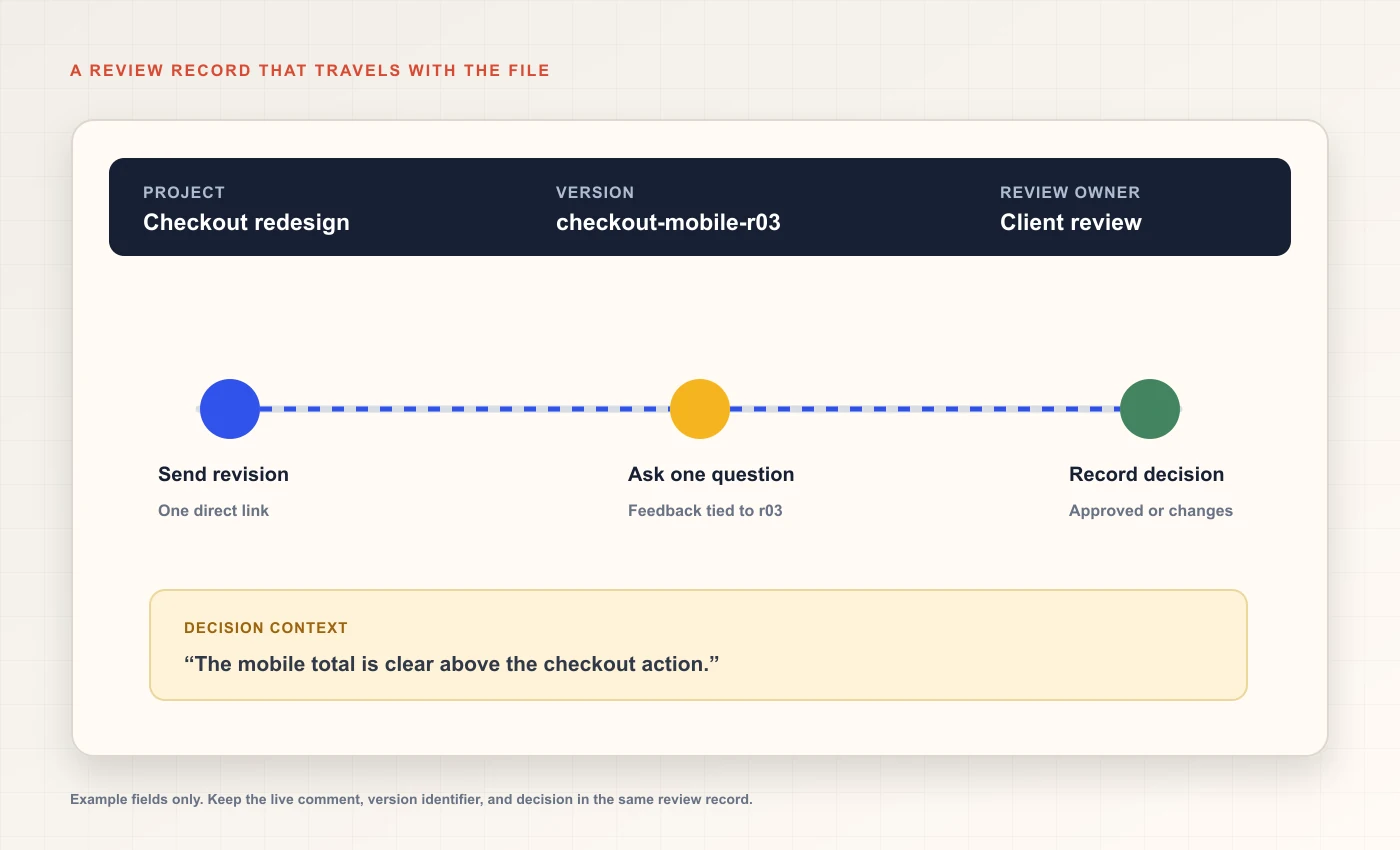 A versioned review record
The client has stated that the wording for picking up products from the store is ambiguous when viewed on a mobile device. The project owner records this comment next to r03, revises the wording of the label, and produces r04. The revised request outlines the changes made to the label and asks the client to determine if the revised wording clearly distinguishes between product pickup and delivery; however, the revised request does not require the client to review or approve any additional page sections.
After the client approves the wording, the team will record this as a final decision and proceed with moving the work forward to the next approval step. Although the previous image will still be accessible to show the history of revisions, it will be labeled as "superseded". The screenshot alone does not determine if the work meets implementation standards, follows accessibility guidelines, or has received final launch approval.
- 01
Prepare
Export only the screens needed for the decision, name each with the same revision, and inspect for confidential data.
- 02
Share
Choose the approved channel, grant the smallest useful permission, and send one focused question.
- 03
Record
Attach feedback to the version, separate requested changes from approval, and identify the person responsible for the next action.
- 04
Revise
Create a new revision, summarize its changes, and send the updated link without overwriting the earlier evidence.
Keep links stable, but not longer-lived than intended
When you use a review link where the content is changed dynamically (i.e. on-the-fly), you may experience confusion regarding which version of the document was viewed. If your review link expires prior to the end of the client's review period, you will receive additional requests for access. Select a lifecycle that aligns with your intended review process and document the expected termination date for the client's ability to access the document.
The expiration of a link or its removal from the remote server does not equal remote erasure. After a certain period of time, a server will no longer allow a user to download a file; however, any previously downloaded file remains on the user's computer. In addition, browser and/or Content Delivery Network (CDN) caches may contain older versions of files being accessed. Therefore, read the practical explanation of expiry and caching prior to stating that deleting/revoking a link immediately removes all copies of the file.
Public marketing images should have a permanent direct link. Private drafts of images can be shared using an application that has the same access controls that are used by your company. Avoid choosing a public link simply because it makes embedding into email and/or Markdown easier.
Make the image email work when images are not shown
If the images used in your email are either not displayed (or take too long), or if you use a proxy to access them, your email should still describe why you are requesting reviews. You can do this by using regular text to state both the question and the version name of the product being reviewed; followed by a clearly labeled link directly to the review item. In addition, when including an inline image in your email, provide relevant alternative text for that image so users can understand what the image represents without having to view it.
Gmail allows users to be asked prior to loading external images, and may provide prompts to users if a message or sender seems suspicious. Apple Mail Privacy Protection can download remote content privately in the background. These behaviors are unique to each vendor, so please do not assume that all email clients will handle image loading or blocking in the exact same manner. [3] [4]
When you use email rendering in your workflow, you should send a test email to the actual account or environment used by your client. Different types of mail clients and recipient-side image proxies may alter the display of a remote image, therefore, it is best to send a test message to the actual destination prior to launching a campaign. To access the technical markup and testing checklist, refer to the hosted images in HTML email guide.
Use a handoff note that can be scanned quickly
An effective email does not need to restate the whole design brief. It should provide a status update on what has been completed, identify which files need to be reviewed, clearly state the specific question that needs an answer, and explain how the reviewer can provide their feedback. When time is of the essence with the review, state the agreed-upon date and time zone. Do not introduce artificial pressure with a deadline if there wasn't an agreement made about when the review must be finished.
Avoid using a single email header for multiple reviews of a single document, and use revision identifiers in the text of each review. Do not replace an image that has been previously referenced with a new image within a thread. If you require a different file than the last one provided, please provide a new link and indicate how it differs from the previous file so a mobile user can identify which of the attachments is the most current.
In conclusion, make sure you provide a specific next step. This could include choosing between two choices, verifying an expression, or providing comments prior to a particular date. The client will be aware if your request is for feedback, approval, or just information.
Review the result as the client will see it
For each URL listed in your email, access the site as either a non-logged-in user (from your own machine) or via your client's account, and follow the exact same navigation path that was provided in the email. Then confirm each of the following: name, preview, permissions, and version. If there are two separate URLs for an image -- one to view the image itself and another to share it -- then you should test both. Just because you can view an image on its own doesn't mean you will be able to embed that image in another location.
Check on a phone to make sure the link can be clicked on easily and you can read the screenshot without having to scroll horizontally. On your computer, make sure the folder/page opens in the correct account and the client doesn't need to ask for permission to view it unexpectedly. Simple checks like these will help avoid beginning the review process with a support request.
The use of a validated service to test the recipient role should be used if there is any client data present in the image. This testing of the recipient role can be done without exposing the file to a different account. Also make sure the image link will open up within the client's account and follow all of the access regulations for that particular project.
A practical checklist for the next review
Before sending, make sure each screenshot is a current version of the web page. Also, make sure that the question on the left of each screenshot can be answered by looking at the screenshot. Look for names, browser tabs, notifications, customer information and possibly a hidden access token within the screenshot. When reading your email imagine that the person you are sending it to has never seen your project.
Once you have sent, connect your feedback with that version, note real decisions, and develop another identifier if there is a change in the image. At the end of the specified time, remove the user's ability to use the tool, however maintain the team's project records as they need to. Avoid promising to delete copies that the user may have downloaded or cached.
If you're looking for an embedded image in your review, check each part of the image individually to see if the image is being served and if there's any policy on the image. You can use the Markdown image diagnostic guide to verify the image is being served correctly. And, if the image has a hidden URL, you can read more about how those types of URLs are protected from access with the access-control comparison.
- Each file has a clear screen name and revision identifier.
- The message asks a specific review question and names the correct version.
- Permissions match the client’s role and were checked in a separate session.
- Sensitive details, expiry, and the project record have an owner.
Frequently asked questions
What is the best way to share screenshots with a client?
For one or two simple images, use the organization-approved email or review service with a clear name and question. For multiple revisions, use a versioned set in a permissioned workspace or proofing tool. Choose based on the sensitivity, feedback method, and how long the review record must remain available.
Should I send image links or attach the screenshots?
Attach files when the email system and retention policy fit the project. Links reduce duplicate attachments and can centralize access, but the recipient may need an account and the URL can be forwarded. Test what the client sees before sending and keep a record of the version.
Can I use an unlisted link for confidential design work?
An unlisted URL is typically accessible to anyone who obtains it. It can be forwarded or copied into another system. Use named-user access or the approved confidential collaboration tool if recipient identity and revocation matter.
How should a client review several design revisions?
Use stable revision identifiers, preserve earlier decisions, and summarize what changed between versions. Ask only the question that is open in that round. Record the response beside the exact version and mark approval only when it has actually been given.
Does Gmail always load screenshots embedded in an email?
No. Gmail provides controls for external images and may ask before showing images it considers suspicious. Other mail clients have different policies. Keep the request and version context in plain text, and test the actual message in the client your recipient uses.
Can I tell from an image request whether a client opened the email?
Not reliably. Mail privacy features and image proxies can fetch remote content independently of a person viewing the message. Ask for confirmation through the agreed review workflow rather than treating an image request as a human-open signal.
Sources and further reading
References are linked beside the relevant claims. Source pages were checked on the dates shown; product documentation and standards may change.
- [1]Share and manage access to files and folders in Google Drive ↗
Google Drive Help · Checked
- [2]Send attachments with your Gmail message ↗
Gmail Help · Checked
- [3]Turn images on or off in Gmail ↗
Gmail Help · Checked
- [4]Change privacy settings in Mail on Mac ↗
Apple Support · Checked
- [5]The img element ↗
MDN Web Docs · Checked
- [6]Understand how file access works in Google Drive ↗
Google Drive Help · Checked