A Markdown image needs valid image syntax and a URL the rendering environment can retrieve. Open that URL directly, follow redirects, inspect the final status and Content-Type, then check access, HTTPS, expiry, and the platform’s Markdown policy. A page that displays an image is not necessarily the image file itself.
Start by separating the two failure layers
Two causes exist for a "blank" space in either a readme file or a ticket. Either the markdown parser does not support the source, or it produces an image element that fails to retrieve its content via a network request. Fixing brackets will not resolve a 403 error, nor will modifying storage access permissions fix a missing closing parenthesis. [1]
First, look at the source code for the page and how it renders. Second, open the link provided in a new window/tab of your web browser. Third, examine what comes back when you make that request. By doing these things, you will be able to avoid trial-and-error as you try to find out what is causing a problem with a picture on your screen. Be sure to note down the exact URL that you opened in the second step above. Also include the operating system (platform) that you used. And lastly, tell me if the picture was displayed correctly once you were logged-in.
The guide employs example.org addresses and a locally hosted test environment instead of using user-generated images. Please utilize an image that can be inspected at your discretion. Before posting a complete request or screen shot to a public bug report, make sure to remove any private tokens or customer data present within the original source.

A four-layer diagnosis
- 011 · MarkdownDid the parser create an image with the intended URL and alt text?
- 022 · HTTPDid the final request return image bytes with a success response?
- 033 · AccessCan this renderer fetch it without a login, cookie, or expired grant?
- 044 · PolicyDoes the host platform allow that image source to render here?
Use valid inline image syntax
The standard CommonMark format includes an exclamation point, followed by the description of the image in square brackets, followed by the URL or file path to the image in parentheses: . The description will be used as the alt text for the image. The URL/file path must be a valid link to the image that you wish to display. [1] [9]
The common near-misses include such small things as forgetting the exclamation point, leaving a parenthesis open, putting the URL within the square brackets, or having a space between the description and the destination. A link like [mug](https://images.example.org/mug.png) is simply clickable text, and does not request an inline image.
The alt text for an image should be brief and explain the useful content in place of the image's file name. The alt text may include an explanation of a diagram or a state that needs to be understood by the user. Alt text can be left blank if the image serves as decoration and the surrounding copy describes what the image is.
Check for reference-style syntax and parser differences
In addition to using inline style for image links, CommonMark allows reference style for image links. With this type of image link, the body of the image link provides an image description and a label, while the destination for the image link is provided in a separate location. CommonMark normalizes the casing and whitespace used in the label when it matches the label to its corresponding definition, however, if there is no definition available, then the rendering engine will have no destination for the image link. [1]
The level of support for Markdown extensions varies by each of the following: preview extensions, wikis, forums, static-site generators, and code hosts. CommonMark establishes the baseline for all products, but does not dictate that each must provide table rendering capability, task listing functionality, the ability to render raw HTML, image size attribute support, or repository-specific path resolution. To determine if there are any discrepancies between the failed file and what the platform supports, refer to the documentation regarding the platform's supported Markdown dialect.
If the source is valid, however, the page contains literal characters, use a simple inline example within your current document. Check to see if there are any closing characters in the destination that would terminate the Markdown construct prematurely. An example of a common edge-case would be a URL that includes unescaped parentheses.
Make sure the destination is an image resource
A URL has the ability to render a photo within a web browser, even though it will return an HTML document. There are many instances where this occurs such as sharing pages, logging into a site, previewing files, and accessing storage consoles. Markdown does not create a click on a page, locate the page's image viewer, or pull out any image from within the page itself.
Open that specific URL in a separate private browser tab. When you have successfully opened the page, check for some indication of the site's menu options, a way to download the file, an option to view a preview, or a form where you would input your username and password. If those are present, take note of the actual URL for the image file. While having an easily identifiable filename extension (.png, etc.) may be helpful to people viewing the files, it is not evidence that the file itself is a image. A server can return an HTML document when accessing a URL that has a .png extension.
Trace the Markdown source through the HTTP response to the rendered image
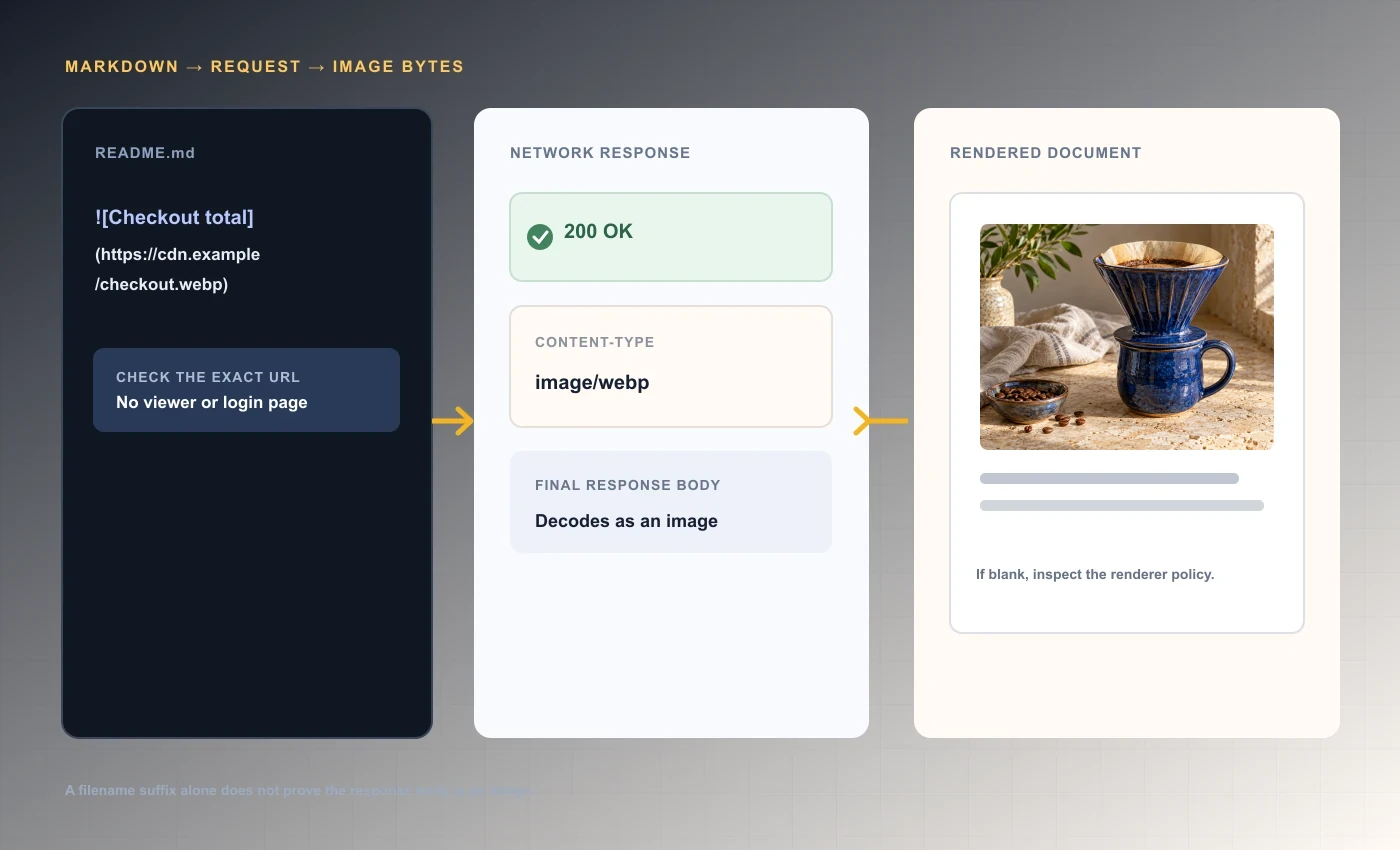 Source, response, rendered result
The most critical data is the response's body and Content-Type, not its domain name or URL structure. This is due to the fact that the Content-Type response header provides the client with information regarding the media type of the content that the server indicated was sent. A JPEG image cannot be created from a text/html file simply because the path appears to be a file. [5]
| What the address returns | What a person sees | What Markdown receives |
|---|---|---|
| Image bytes | The browser displays the image | An image can render if status, access, and policy also permit it |
| HTML share page | A page with a viewer or controls | HTML text and markup, not the underlying image bytes |
| Login or consent page | A sign-in prompt or access message | HTML from the gate; an unauthenticated renderer usually has no session |
| Download endpoint | A browser may download or preview it | May work only if it returns a supported image type and suitable headers |
Use the correct kind of link
A share-page URL can be used by a user to view a page containing an image, title, buttons, password entry field, expiration notification, and/or user authentication check. A direct image URL is utilized by software to retrieve the actual image represented at the location specified in the URL. That difference is critical when using either the HTML img element or Markdown image syntax.
A redirect is not inherently bad. A redirect from a persistent image URL to a CDN object is perfectly acceptable; a web browser will easily follow it. What makes a redirect "bad" is when it redirects to an HTML page, an error page, a login process, or a blocked domain. To determine whether a redirect chain was "good" or "bad", you must evaluate the last response in the redirect chain. [6]
Do not remove authentication parameters from the URL, add to the end of the URL a guessed file extension, or take a temporary browser preview URL and use it without verifying how long it will be valid. All of these actions may result in the creation of another resource or unnoticeably weaken access. Request from the service provider an embed-ready direct URL and determine if that URL is public, signed, or associated with a user's session.
Share page versus image bytes
- 01Share linkHuman-facing HTML can contain controls, context, and an image viewer.
- 02Image requestThe renderer expects an image representation from the requested URL.
- 03Wrong destinationIf the share link returns HTML, Markdown has no image bytes to paint.
Resolve relative URLs against the right document
Relative destinations are evaluated based on where the document/repository exists rather than the directory structure of your computer. For example, if you include images/diagram.png within a README file, it will be evaluated relative to the README file's position within the repository. On the other hand, if you reference the same image in an issue comment, the image's evaluation will occur based on the issue page and therefore result in a different location.
Relative paths are used when the image being displayed is committed along with the document, and the system being used for the display supports resolving relative paths based on the position of the document within the repository. Absolute HTTPS URLs should be utilized when content needs to be viewed across several different platforms or does not have a common directory structure. It is important to note that you cannot guarantee that a reader of your work will have access to a local file path such as C:\Users\Asha\Desktop\capture.png.
A path working from the repository root might fail when used with a nested file. You should count your parent directory levels, look at how the letters in your filename are capitalized, and examine the raw file tree. File name case sensitivity is dependent upon the local file system or server where the project is being developed. Therefore, a file name that functions correctly on one developer's computer may not function correctly once published.
Encode characters that belong to the URL
Spaces, parenthesis, non-ASCII characters, and special characters used in Markdown may cause errors with Markdown or the server. It would be much easier to refer to a file named "checkout final (mobile).png" if you renamed it to "checkout-final-mobile.png." If you cannot change the name of the file, percent encode the URL path to the file using URL rules.
In general, don't just blindly percent-encode the whole URL. The scheme separator, path separator, query delimiter, and parameter separator all represent different things. Percent-encode only the part of the URL (i.e. path segment or parameter) where you are using special characters, then try out your encoded URL in a web browser and/or HTTP client.
If you need a query token, always keep it exactly as-is and do not allow others to see it through public issue tracking systems or analytic tools. The token may become invalid due to an improperly formed ampersand (&), an incomplete query string (?), or if punctuation was accidentally included when copying the URL. If the token needs to remain secure, consider using a platform that allows you to authorize the renderer securely instead of displaying the token publicly.
Inspect the status and final destination
A successful response will include both a success status and image content. To begin, send a HEADER request to view the most fundamental headers, but remember that not all hosts implement HEAD in the same manner as GET. Screenshot workflow for reporting bugs If the HEADER request is denied, provides a different status code, or lacks the necessary headers, then make a GET request and store the response body into a temporary file.
While you are following redirects and recording both the chain of those redirects and their final destination, you will find that the final URL may indicate an unforeseen redirect to a login route or a generic HTML page. Although the presence of a "visible redirect" flag alone can only be viewed in retrospect, if your application must reject redirects then you should make sure that this behavior is configured for the request itself, rather than verifying it once the fetch has been completed. [7]
A 200 status code simply indicates that the server received the request successfully. This does not guarantee that the returned content is indeed an image. In order to confirm whether the content returned is an image, you can check the "Content-Type" header, and if necessary, inspect the initial bytes of the downloaded content, or use local tools to determine what type of file was downloaded. You should never submit a sensitive signed URL to a third-party header checking tool.
Read status codes as evidence, not as a diagnosis
HTTP status codes indicate the general category of the response, and can be used to focus on what should be checked next. 3xx responses carry a redirect behavior; 4xx results point to issues with the request or access permissions; and 5xx results represent failures at the server level. The code alone cannot represent all possible provider specific reasons. [2] [4]
In other words, a 403 error indicates that the server has denied access to the content requested, whereas a 404 error indicates that the server cannot locate the requested content, or is actively attempting to conceal its location. Therefore, what may appear as a missing image can result from either access restrictions, an expired token, an incorrect key, or intentional deception. If you are responsible for the host machine, examine the service's response body and log files.
A 429 indicates that you have been rate limited temporarily, and reloading the page repeatedly can cause an issue to become worse. A 410 indicates that the resource is gone permanently according to the server. A 304 is a validation of the cache, not a failed redirect; the client should use its stored representation of the resource if the validation is successful.
| Observation | What it usually tells you | Next check |
|---|---|---|
| 200 with image/* | The server reports a successful image representation | Check bytes, dimensions, renderer restrictions, and browser console |
| 200 with text/html | A page was returned instead of image bytes | Inspect the final URL for a share, login, or error page |
| 301, 302, 307, 308 | The server points to another URL | Follow the chain and inspect the final status and type |
| 401 or 403 | Authentication is missing or access is refused | Check whether the renderer can use the required credentials |
| 404 or 410 | The route is unavailable or has been retired | Check spelling, object state, expiry, and revocation |
| 415 or 429 | The endpoint rejected the type or rate of requests | Check accepted types, request policy, and retry guidance |
| 500–599 | A server or upstream service could not complete the request | Retry once later, inspect origin/CDN health, and preserve request IDs |
Verify MIME type and body together
The HTTP Content-Type header specifies what media type the server claims to be providing in its response. For example, a still image that has been correctly generated may provide images/jpeg, images/png, images/webp, or other image formats. This discrepancy in header can occur as a result of a host setting, a conversion service, or an HTML error page being served with the incorrect default content-type. [5]
Inspect the body of the response instead of relying on only the filename or header. If a command says it is saving a .png, but when you run file on that saved object, it states it's HTML; open the response headers and the first few lines of the body. Do not dump binary data into your terminal. To test a locally-hosted image, use a file signature comparison and then decode the image using an image utility.
A response can also be an image format that isn't supported by the destination's rendering engine, or a valid but extremely large image which causes issues with the constraint-based editor. Only convert a copy into a commonly used image format after you have verified the validity of the original. Re-encoding can potentially affect transparency, animation, orientation, color profile, and/or metadata, therefore, it would be wise to create a backup.
Check whether a redirect leads to authentication
Many times when you are using a private share page (often times a private share page uses either a cookie, a browser session, or a password form), if an image embedded in a Markdown renderer is fetched as a subresource, the renderer might not be able to access the interactive browser session that you have. If the request redirects to an HTML login page, then the image will never reach the parser.
Check the URL in a logged out private browsing window and compare the results of what you see when you check the URL in your logged in browser. If the only time you can view the URL is after logging into the site, then the URL cannot be embedded as a public link. See the password vs. unlisted image link article for information about different types of access. Please do not try to fix the issue by copying your session cookies into Markdown, source control, or an issue comment; doing so will turn an access boundary into a security risk.
Confidential files should be used with an authorized integration or a platform where you have granted access to the correct people. Direct images can be easily shared using the image's URL; however, anyone who has the URL will be able to view the image. Although a password page is user friendly, it does not prevent others from viewing the image as long as they can access the exact same byte data via an unsecured endpoint.
- Open the URL in a signed-out browser context.
- Compare its final URL and response type with the signed-in result.
- Check the raw image endpoint and any thumbnail or transformed endpoint.
- Choose an access method whose rules match the intended audience.
Separate browser display, CORS, and platform policy
An ordinary image tag can render multiple cross-origin images without giving access to the image's bytes to Javascript running on the webpage. CORS applies only if you intend to read the fetched response with script, or if you need to export the pixel data from a canvas that was populated by an image loaded from a different origin. A CORS error in a canvas workflow and a broken Markdown image are not necessarily the same problem.
The Document's Content Security Policy allows you to control which hosts can provide images (img-src). A code hosting service or documentation provider can also serve as an intermediary to deliver your images, sanitize HTML, prevent mixed content, and/or restrict access to only certain protocols. The browser console and network panels indicate where a request was denied at the network level, policy level, decoding level, or rendering level.
HTTPS pages should use only secure HTTP image URLs. Since browsers view insecure subresources as "mixed content" they may restrict access to, or upgrade requests to, these images. Therefore, the use of an HTTPS image endpoint that has a valid certificate is recommended. In addition to this, make sure all redirects leading from your initial request to the final destination page adhere to the destination page's security policies. [8]
Where a browser can stop an image
- 01Request blockedMixed content, CSP, extension, network, or platform allowlist.
- 02Response rejectedAuthentication, status error, bad MIME type, or unsupported bytes.
- 03Response receivedDecode failure, layout size, hidden CSS, or Markdown sanitization.
Account for caching, revocation, and expiry
A fresh browser test might show different results than the same page that already has the image loaded. This could happen if you are using a previously loaded version of the image from your browser, service worker, image proxy, CDN, or platform preview. You should check the Cache-Control header, validator headers, age, and response status of the image to determine if it is being served from cache. If you believe the image is being served from cache, try testing with a completely new user profile or a totally new URL instead of just doing a "hard refresh" on your current page.
Conforming HTTP caches are instructed by no-store to avoid storing a response; however, no-cache allows for storage, but validates before allowing the response to be reused. Both headers do not allow for the retrieval of a previously downloaded file, nor do they remove files that have been saved off-site from the service. When designing cache directives and expiry checks, they must be done at the image origin and at all proxies. [3]
If you need to make sure that people stop accessing your content immediately, you should not make those same bytes available to the public with a long "freshness" time frame, and then change the page-level rules for those bytes later on. It is important to test the direct image path after a user expires, rather than just testing the landing page.
| Check | Can show | Cannot establish |
|---|---|---|
| Fresh private window | Whether a new browser context can reach the address | What a proxy or recipient cached earlier |
| Cache-Control header | The origin’s current stated cache policy | That every intermediary obeyed it or deleted old copies |
| Expired share test | Whether a new origin request is denied now | Whether someone saved or captured the image earlier |
| Hard reload | Whether one browser asks again under its own rules | A purge of remote caches or a recipient’s downloaded file |
Check the Markdown host with a minimal control
You should also create a control that is able to separate the renderer from your assets. You can achieve this by using a small public test image, which you can control, on the same page as your Markdown field, along with a simple URL, that has no spaces, query parameters, authentication, or redirects. When you have successfully tested the rendering, you may then begin adding features back into the system until the problem occurs again.
First, check the Markdown rules and network console of the host if neither the control image nor your image will render. If the control image is working and your image isn’t, then compare the status, final URL, content type, permissions, format, and size of the files. Write down what happens in order for a teammate to do the exact same test.
Do not use a third-party tracking pixel or another person's photo for testing purposes. You may use a non-sensitive image you own that has a stable public route, or a local fixture. The test URL should not contain an access token that could potentially be copied into a bug report or build log.
- 01
Render a known-good control
Use a small image from a host and account you control, with a simple HTTPS path.
- 02
Compare one variable
Swap only the destination URL, then only the file format or path, keeping the Markdown unchanged.
- 03
Capture network evidence
Save status, final URL, Content-Type, console error, platform, and time without exposing private tokens.
- 04
Re-test after the fix
Open the published document as a signed-out reader and confirm the image remains visible.
Follow a decision path instead of guessing
If the source text is identical to what is displayed on screen, verify Markdown syntax and the host's parser. If there are no images shown when the source text has been rendered into HTML, check for sanitization or inspect the document model. When an image element is present in the rendered HTML, yet displays a broken icon, inspect the network request instead of changing the prose around the image.
Use request evidence to narrow the failure
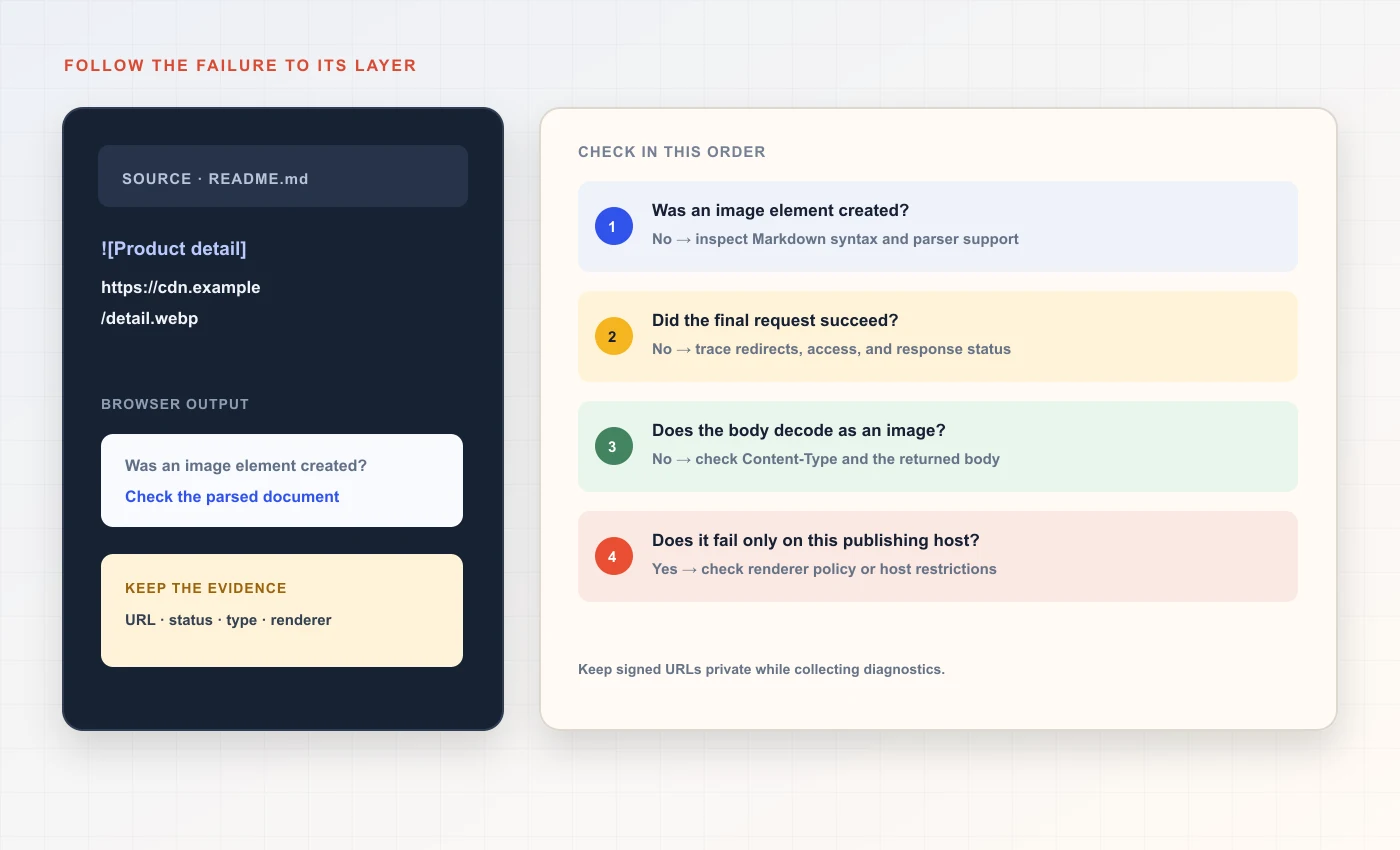 A practical diagnostic path
When the request results in 3xx, then follow the redirect path to see what is at the end of the line. If the request results in 4xx, then look into access, existence, expiration date, quota, and host policies. When the request results in 5xx, then keep the request id and try again after looking up the service status. When the request results in 200, then confirm that the bytes can be decoded and that the page policy allows for this.
The above process reduces the amount of guess work required to identify a problem and provides a report that may be used by someone else. If the image contains sensitive information, provide a redacted screenshot of the network tab instead of the original signed URL or page. Do not include any tokens, cookies, or account identifying information within publicly accessible issue tracking systems.
Markdown image troubleshooting path
- 01Literal source?Fix syntax, parser dialect, or destination delimiters.
- 02No image element?Inspect the Markdown renderer and HTML sanitization.
- 03Request error?Classify status, redirect, MIME type, and access rules.
- 04200 image response?Inspect decoding, CSP, dimensions, cache, and CSS.
Make a report that can be reproduced
A good bug report should include: The precise Markdown snippet (without secrets), The platform and page type, The date/time that you tested the issue. Indicate if the image displayed correctly after opening it. Indicate if you were logged into the site. Indicate the status and Content-Type from the Network panel. Provide browser/OS information if the failure is likely dependent upon those variables.
Include a cropped version of the rendered page, and if appropriate, a redacted view of the Network panel. Maintain the original image's aspect ratio. Provide enough of the page to indicate where the failing image resides on the page. Remove all identifying information from the page, such as account name(s), query token(s), private message(s) and tabs that do not relate to the issue.
The report needs to clearly separate what you observed from why you believe it happened. Your observation was "The embed returns 302 to /login and then text/html." This is the data you collected. Your explanation was "Markdown is broken." This is your interpretation of the data. To help the investigator understand the difference between your data and your interpretation, provide either a minimal correct example of how the Markdown should work (so they can see the expected result) or a control test (so they can verify that the issue is indeed related to Markdown).
Know when to use a different presentation
Inline images are most effective for conveying the visual information that is contained within the text, and where the image can be accessed by the user on the target platform. To begin, if you plan to upload a screenshot before embedding it into your content, use the screenshot sharing workspace to upload the image. When a reader requires additional context, captioning, access control, or revision history regarding the image, then a human-facing share page may provide a superior linking method. In this situation, create a standard markdown link to reference the image instead of creating a markdown link representing the image embed.
When you need to make sure an image stays within your project's code repository and can be transferred along with the rest of your files, commit a small enough file (asset) and reference it relative to your repository. This will help you eliminate any dependencies on external hosts; however, there are some trade-offs to consider regarding version control. Large binary files will increase the size of your repository history, and even if they are removed from the current state of your repository, they may still exist in previous commits.
Do not include images containing private client information on a public source control site or within a public issue just so you can use Markdown. Instead, utilize the approved private collaboration tool, assign named access (if possible), and ensure that your image description remains relevant while maintaining the privacy of the hidden content.
Use a short checklist before publishing
Before you publish your document, view the last page as if you were reading it, not just editing it. Check that the image is there, the alternative text provides good information, and the caption describes what is proven by the image. For technical writing, make sure that the image can still be clearly seen even when viewed on a device with a smaller screen than yours.
Then verify the link using a method other than through your current browser session. Confirm that the last returned object is indeed an image in one of the formats supported by the system, and that there are no accidental redirects or expirations. If you use a CDN or other type of proxy to deliver content, be sure to test the published URL once the service has pulled the image from its origin server at least once.
Lastly, ensure that the time during which an access will be valid is equal to the duration of the document. A temporary preview address can expire while the Markdown file is still being used, and a publicly available, permanently accessible address can continue to exist beyond the intended audience. Place the stable asset into a managed location or plan to update the link prior to its expiration.
- Syntax and alt text are correct for the target Markdown dialect.
- The final request returns decodable image bytes with a supported Content-Type.
- Access, redirect, HTTPS, and cache behavior match the intended audience.
- The published document works in a signed-out reader context.
Frequently asked questions
Why does a Markdown link open an image, but the embed stay blank?
A normal link opens in a top-level browser context, while an embed is a subresource request. The renderer may apply a different policy, lack your sign-in cookies, or receive an HTML page instead of image bytes. Inspect the image request in the network panel and check the final response type.
Does a 200 status guarantee that Markdown can display the image?
No. A 200 response can contain a login page, application error, or other HTML. Confirm that the body is a supported image and the Content-Type is appropriate, then check renderer policy and whether the image decoder accepts the bytes.
Can I use a password-protected image URL in Markdown?
Only if the target Markdown renderer has a supported way to authenticate that request. Most static renderers do not complete an interactive password form, and a public direct image route can bypass a protected landing page. Use the platform’s supported private integration or a normal share-page link instead.
Why does my local relative image work but not the published page?
The publishing platform resolves relative paths against its repository or document URL, not your computer’s filesystem. Check the exact directory and filename case, and confirm that the asset was committed or uploaded. A local path such as a desktop folder is not addressable by readers on another device.
Should I use curl -I to test an image?
It is a quick header check, but it sends HEAD and some hosts handle HEAD differently from GET. If the result seems inconsistent, make a GET request, follow the redirects, save the body to a temporary file, and inspect both the final headers and the actual file type.
Can a cache keep showing an image after I revoke its link?
It can, depending on the cache policy and what was fetched earlier. Revocation can block a new origin request, but it cannot recall a downloaded file or every intermediary copy. Decide caching before making an image public, and test the direct byte path after changing access.
Sources and further reading
References are linked beside the relevant claims. Source pages were checked on the dates shown; product documentation and standards may change.
- [1]CommonMark Spec 0.31.2 — Images ↗
CommonMark · Published 2024-01-28 · Checked
- [2]RFC 9110 — HTTP Semantics ↗
IETF · Published 2022-06 · Checked
- [3]RFC 9111 — HTTP Caching ↗
IETF · Published 2022-06 · Checked
- [4]HTTP response status codes ↗
MDN Web Docs · Checked
- [5]Content-Type header ↗
MDN Web Docs · Checked
- [6]Redirections in HTTP ↗
MDN Web Docs · Checked
- [7]Response.redirected and redirect handling ↗
MDN Web Docs · Checked
- [8]Transport Layer Security: mixed content ↗
MDN Web Docs · Checked
- [9]The img element ↗
MDN Web Docs · Checked
- [10]HTML images: paths and width/height ↗
MDN Web Docs · Checked