WORKFLOWS BY AUDIENCE

A better image handoff starts with context.

Image requirements are different for each of the following groups: developers, reviewers, support staff and publishers. The examples presented here provide practical ways to create images that meet the needs of all these groups when providing image assets for use within your company's processes. For example, if you're reporting a bug, the image should be relevant to what caused the issue. Similarly, if you're updating a catalog entry, the image should accurately depict the product being sold.

SIX PRACTICAL WORKFLOWS

Start with the job to be done.

Each example is explicitly illustrative. Use real recipients, identifiers and approved channels from your own work; do not treat sample scenarios as customer stories or measured outcomes.

01 / DEVELOPERSDeveloper checking an image inside a documentation preview beside the code editor

Give a bug report a state someone can reproduce

A screenshot is evidence of one rendered state; it does not explain how to reach that state or whether the problem repeats.

ILLUSTRATIVE EXAMPLE

Fictional example: a checkout page shows a blank delivery-method panel after a saved address is selected. The report names the browser and viewport, gives the sanitized screenshot, then lists the address and selection steps that reproduce the panel.

  1. 01
    Capture the relevant area

    Show the failed panel and enough surrounding interface to orient the engineer. Do not crop away the control that led to the error.

  2. 02
    Remove secrets and identifiers

    Inspect the full image for tokens, customer data and private tabs. If needed, create and review a separate redacted output.

  3. 03
    Write the reproduction

    Add expected result, actual result, steps, browser and time beside the image. Preserve a short error excerpt without credentials.

Useful result

The engineer gets one identifiable screenshot plus the sequence and environment needed to reproduce the reported state.

Limit to keep in view

Before adding an image to a ticket, confirm the issue tracker allows the intended audience to open it. Keep the relevant error and steps to reproduce beside the image.


Use the complete bug-report checklist ↗
02 / DESIGNERS AND AGENCIESDesigner comparing desktop and mobile website review screens

Keep client feedback attached to the right revision

A review becomes confusing when files have vague names, approvals arrive out of order or one URL silently points to a changed image.

ILLUSTRATIVE EXAMPLE

Fictional example: a studio shares three checkout screens—cart, delivery and confirmation—with revision labels such as checkout-delivery-v03. Each screen has one open question and a place to record the client’s answer.

  1. 01
    Label before exporting

    Use a project, screen and revision identifier in every filename. Keep the visual size or state consistent when comparing revisions.

  2. 02
    Ask for one decision at a time

    Write what changed and the question that remains. Separate visual preference from copy, accessibility and implementation sign-off.

  3. 03
    Record the exact version

    Copy feedback into a decision log that names the file and revision. Keep earlier decisions until the team no longer needs the audit trail.

Useful result

The reviewer can tell which screen they are evaluating, what answer is needed and which revision a decision applies to.

Limit to keep in view

For confidential client material, use a review service approved by your organization and verify its access rules with the client’s role.

Plan a versioned client handoff ↗
03 / SUPPORT TEAMSSupport analyst inspecting a screenshot of a browser error

Show the customer’s visible state without forwarding their data

Support agents often need the visible error and the steps before it, while the screenshot itself may contain account details that should not travel with the ticket.

ILLUSTRATIVE EXAMPLE

Fictional example: an account-settings save returns an error banner after a profile field changes. The agent captures the banner and relevant control, removes the email address and account ID, then explains whether a reload changes the result.

  1. 01
    Recreate with the least data

    Capture the error, control labels and surrounding context needed for diagnosis. Remove customer identifiers and tokens before attaching the image.

  2. 02
    Redact a derived image

    Apply a bounded blur or pixelation region to private text, save the edit as a separate image, and open the saved copy to inspect it.

  3. 03
    Attach the troubleshooting context

    Record the exact steps, product version and whether the error persists. Ask the reporter to confirm the image does not contain another user’s information.

Useful result

The ticket carries enough context for triage without making the screenshot itself the only explanation.

Limit to keep in view

Redaction changes the saved image, but you still need to inspect the full result for other identifiers. Use a support-approved channel with recipient access.

Open the screenshot workflow ↗
04 / ONLINE SELLERSOnline seller photographing product variations for a catalogue

Map product photos to catalogue rows with a manifest

A group of similar files is easy to misassign when the filename, variant and view are not explicit.

ILLUSTRATIVE EXAMPLE

Fictional examples: mug-204-blue-front-v03.webp and mug-204-blue-handle-v03.webp identify the same SKU and color but different views. The export keeps each filename beside its image ID and both link types.

  1. 01
    Set the naming rule

    Include a stable product or SKU, variant, view and optional revision. Avoid renaming files after the CSV is prepared.

  2. 02
    Upload in small batches

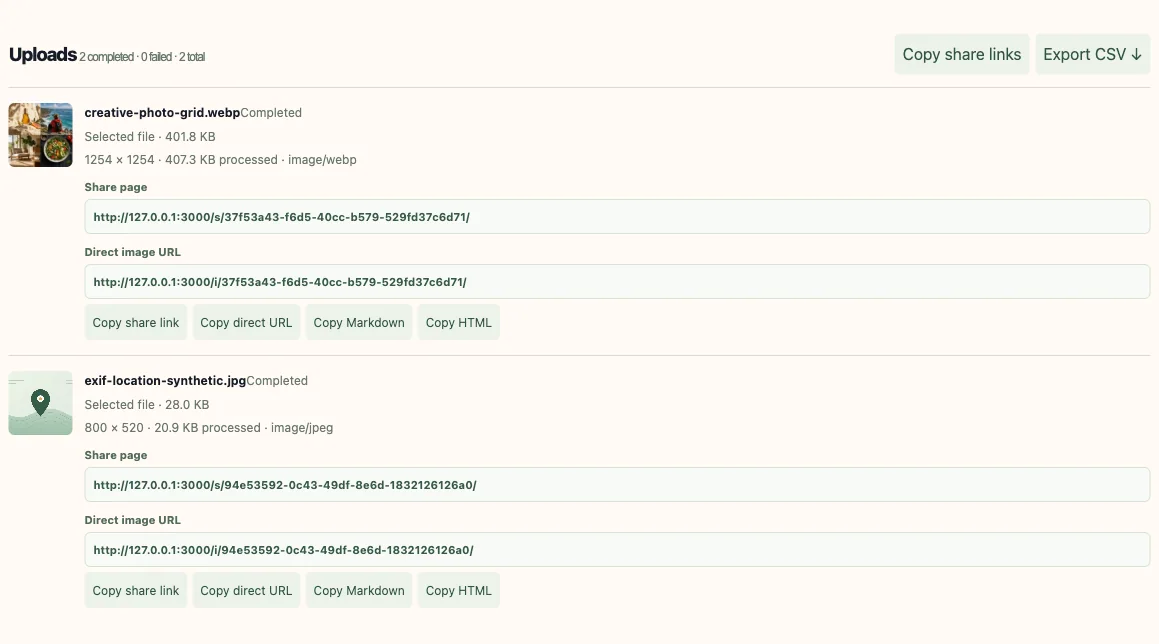
    Choose up to ten images at a time. Check each result and retry any failed row before exporting.

  3. 03
    Reconcile the CSV

    Compare filename, SKU and returned URL against the catalogue. Test a direct image URL in the store’s import flow before mapping a full batch.

Useful result

A reviewable mapping makes it possible to spot a missing variant or mislabeled angle before the catalogue is updated.

Limit to keep in view

The CSV is an image-link manifest, not a product import. Map its columns to your store’s importer and test how that system consumes the URLs.

Prepare a batch and CSV manifest ↗
05 / MARKETERSCreative team sorting campaign photography and visual proofs

Prepare image-led campaigns with a text-first fallback

A hosted image may appear in a campaign, but mailbox and web clients can block it, proxy it or fetch it under their own caching behavior.

ILLUSTRATIVE EXAMPLE

Fictional example: a launch email contains a product banner and a separate text call to action. The body still names the offer and date when images are disabled, while the test plan checks the image URL from an outside mailbox.

  1. 01
    Use the right output for the channel

    For a web page or email, the destination must be able to fetch an HTTPS image response with the right access permissions.

  2. 02
    Keep essential meaning in text

    Add useful alt text and repeat important dates, instructions or calls to action in normal HTML text.

  3. 03
    Test a real send

    Send to the mailbox clients your audience actually uses. Check images enabled and blocked, mobile width, proxy behavior and destination permissions.

Useful result

The message can still communicate its main point when the image fails, and the team does not mistake a successful browser preview for client compatibility.

Limit to keep in view

A browser preview does not prove the image will load in every mailbox. Test the actual message in the clients your audience uses and keep essential copy outside the image.

Build an email-image test plan ↗
06 / EDUCATORS AND WRITERSTeacher preparing a lesson with a visual map and image examples

Place a visual beside the step it explains

A diagram can make a procedure easier to follow when its label, caption and surrounding text supply enough meaning on their own.

ILLUSTRATIVE EXAMPLE

Fictional example: a course lesson shows a three-step screenshot of a settings flow. Each image is named by lesson and step, and the prose explains the same action so learners are not blocked if the image does not load.

  1. 01
    Choose the exact visual

    Crop to the interface state relevant to the lesson and avoid unrelated browser chrome or personal information.

  2. 02
    Write context and alternative text

    Explain the action before the figure; describe its useful information in alt text and a caption without repeating every word.

  3. 03
    Test the embed syntax

    Use a direct image URL with Markdown or an HTML img element only when the destination can fetch image bytes. Keep the surrounding steps as text.

Useful result

The visual supports the explanation instead of carrying an instruction that disappears when images are unavailable.

Limit to keep in view

For a published course or article, use an image URL readers can reach and a service with a clear access and retention policy.

Check Markdown image links ↗

Choose a workflow by the decision the image supports

Before you submit, identify what question the user needs to respond to. For example, a bug report will ask "what failed?" and "how can I reproduce this?" A design review will ask "which version/option do you want my opinion on?" A catalog task will ask "is this the right image for the right product?" These are different types of handoffs although all start as a.png file.

Place the image next to the relevant context for understanding (source page/product, revision number, type of device/viewport, what is expected to happen, and then what will occur after that). By doing this you are turning an image into proof that can be used to show your point rather than having someone figure out the task you were working on.

HOW THE PARTS CONNECT

A handoff that can be acted on

  1. 01
    Prepare

    Choose the right image and remove details the recipient should not see.

  2. 02
    Explain

    Name the version, expected result and specific decision.

  3. 03
    Deliver

    Use a link the recipient can reach under the correct access policy.

  4. 04
    Verify

    Open the exact link and confirm the intended output before sending.

Each stage adds information the next person needs, while the link type depends on the destination.

Keep the sample practical and the claims honest

The six examples given above are not actual client stories or measured case studies; they are simply fictional examples of how to illustrate workflows. You can use these examples as a starting point for creating your own checklist. Replace the sample identifier, recipient, date and project rules with facts from your own work. Do not copy a sample name into a live catalogue or ticket.

The Image URL Kit provides an integrated workflow for managing your images from start to finish. This includes providing options for uploading images, selecting links, obtaining batch results, and organizing your images. Select a delivery method that will best meet the needs of both the recipient and the location where they intend to view the image. Then confirm whether or not the image can be accessed at the selected location.

Match the output to the receiving system

When someone reviews a screenshot, they usually find that having a share page with a title and context helps. If you are using a Markdown renderer, website, or email client, you will need to provide a publically accessible URL where your image can be accessed. For most spreadsheets or catalogs, you'll need to create a manifest that maps each row to a file and have some form of import validation.

Do not assume a URL is acceptable simply because you are able to open it using your signed-in web browser. Determine the last status, the type of content, any redirection that occurred, who has permission to view the site, and if the user’s network is capable of accessing the URL. Also, ensure the image is allowed per the guidelines of the target platform.

A quick handoff decision guide
Audience taskUseful outputBefore the handoff
Bug triageScreenshot plus issue bodyRedact secrets; include environment and steps
Design reviewNamed image and revision logState the open question and reviewer role
SupportSanitized capture plus reproduction notesUse an approved channel; inspect saved redaction
Product catalogueImage URL manifest linked to SKUReconcile rows and test the store importer
CampaignPublic image response plus text fallbackTest real recipient clients and blocked images
Lesson or articleDirect image embed plus prose/captionVerify reachability, alt text and meaning without image

Make privacy checks part of the handoff

A screenshot can reveal what's in your browser, customer information, internal systems, access tokens, personal communications, or location. Look at the whole picture, not just the part that seems most relevant. When redacting a section of an image, check the exported copy in the same size as it will be viewed by others. If the redacted area has an overlay that is not included in the export process, then the original content will remain visible.

For client, support and campaign related activities, use an access controlled channel that has been approved for the audience. An unlisted link can be shared with others, and a password rule is effective only if it can also protect the image response.

  • Use images you have permission to share, and remove sensitive details before sending them.
  • Keep original, edited and reviewed files distinguishable.
  • Do not place access tokens or passwords in screenshot filenames, alt text or issue bodies.
  • Test both the viewing page and direct image route from the recipient’s context.

Continue with the matching tool or guide

Use the screenshot workspace if you are only capturing one image to provide context, or use the batch uploader if your file names need to be in line with a group of results. You can find more about how to use the image features and links in the feature overview.

To find out more about how we did this walk through, please refer to our Bug-Report Capture & Reproduce Guide, Client Review & Versioning Guide, SKU Manifest Workflow and Access Control Trade-offs.

ANSWERS BEFORE YOU START

Frequently asked questions

Which image workflows are included?

The image workflow includes single uploads, screenshot links, batch results, CSV export, editing and image organization. Choose a share page for browser viewing or a direct image URL for an embed.

Can I send these links to a client or customer?

Before sending an image link to a client, confirm that it opens from the client’s account and network. For confidential work, use an access-controlled service approved by your organization.

Can sellers import the CSV straight into a store?

The CSV is a manifest with filenames, IDs, share links, direct links and sizes. Map those fields to the store’s importer and verify that it can retrieve the direct image URL.

Is a screenshot enough for a bug report?

Usually not. Add the expected and actual results, reproduction steps, browser or application version, relevant viewport and a safe way to reach the image.

What should marketers test when using hosted images?

Test a real message in the email clients and account types that matter, with remote images enabled and blocked. Keep the key offer and call to action in text so the message still works when images are hidden.

Can an educator rely on alt text instead of a caption?

Alt text serves the image’s informational purpose for people who do not see it; a caption gives visible context to everyone. Keep the lesson’s essential instruction in normal text as well.