
Choose or paste an image
If you can, you can browse, drag and drop, or paste a clipboard image. Before you upload the image, check it first. The file picker will not tell you if there are any sensitive parts that should not be shared.
Take a picture (photo) or make a screen shot that works, upload it, and create a link to use. Create either a personal sharing page, or a direct image link that will work on other sites, documents or apps.
When you are finished with the image processing, view the preview of your image and select which URL you would like to use. You can either drag and drop an image onto the screen, find an image on your computer, or copy and paste an image into the upload box if your browser allows for those options.
Understand the two link types



Uploads are temporarily unavailable.
It helps you upload still images, inspect a processed result and choose a URL that suits the next step.
Image URL Kit is designed for image based uploads and link workflows. You don't have to attach each image you send to each message. You can create a link to an image or screen shot by creating a link to the results of your upload. When you use the uploader, it will check the image data for support, process a version of the image, and then report on the size of the image (stored), what format the image is, and the dimensions of the image.
The system provides two options to access your images. First, the "share page" URL will provide you with a viewable version of the image and some of the associated metadata. Second, the "direct image" URL will point you directly to the image file. This option is most useful when creating HTML image elements, using Markdown image syntax, or other applications which require the direct retrieval of image data.
The workspace of the screenshot may be used for a single capture, or the batch queue to associate several file names with their respective results. The image library that is signed into adds search capability, collections, tagging, editing, and recording capabilities.
The uploader shows the result after processing. Keep the original file when exact source bytes or a particular color profile matter.
If you can, you can browse, drag and drop, or paste a clipboard image. Before you upload the image, check it first. The file picker will not tell you if there are any sensitive parts that should not be shared.
The server takes the raw data from a user's image (as long as it supports decoding of that type) and applies an orientation to that raw data before creating a new image. All metadata, including EXIF, is removed when the new image is created. This process applies only to static images. Images that animate or contain SVG will be rejected.
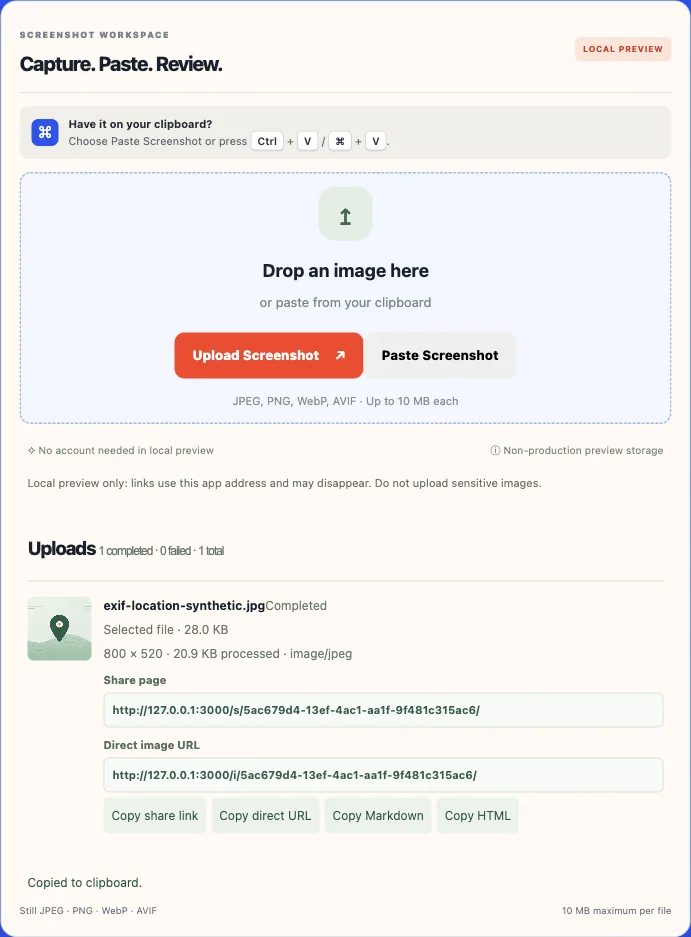
Check the preview, dimensions, output type and processed size. Re-encoding may affect bytes or quality. Therefore, view the final image prior to inclusion into a production workflow.
Select either the viewing page or direct image response. Copy and paste your selection into the desired location. Verify that the results appear correctly in another browser window once the service goes live.
Before inserting an image into your document, check that you have the correct direct URL for the image on the other end, and verify that the image is available there at the proper size and with appropriate access rights.
Two addresses can refer to the same image and still behave differently when a browser, Markdown renderer or website requests them.
Some image links are handled differently. A "share page" link creates a web page that contains the image to be viewed. When a user is authorized to view an image directly through its direct URL, then the user receives the processed version of the image. It is possible that if a user selects a "viewing page" within an image element, they will either receive a broken image or a different type of page than expected.
| Feature | Share page | Direct image URL |
|---|---|---|
| Main purpose | Human viewing and context | Image retrieval or embedding |
| Typical response | HTML webpage | Image data with an image content type |
| Markdown image syntax | Usually unsuitable | Works when the renderer can fetch it and access is allowed |
| HTML image element | Usually unsuitable as the src | Works when the response contains image bytes |
| Useful for sending to a person | Yes, when the service is reachable | Yes, though it may open as a bare image |
| Access rules | May apply to the page and image delivery | Must apply to the image response too |
A developer who adds a screen capture to their Markdown file will typically require the direct link to that capture. A designer who has sent a revision to a customer for feedback may find the share page is more appropriate. You can view the Markdown image problem solving guide if you receive an incorrect response, or see the features comparison table to evaluate control options for editing, organizing, and sharing content.
The image uploader can accept static (still) jpeg, png, webp and avif images. Images are processed on the server as they are uncompressed and then compressed again; therefore, animated gifs and svg files cannot be accepted through this method.
The choice of format for an image should depend on its content and where it is going to be used. If you need the exact same byte values, metadata, or export quality, then use the original image file.
| Format | Common use | Consider |
|---|---|---|
| JPEG | Photographs and product images | Lossy re-encoding can change image size and quality. |
| PNG | Screenshots, text-heavy images and transparent graphics | Can use more space for photographs; transparency is retained by the PNG encoder. |
| WebP | Web graphics and photographs | Modern compression; confirm that the destination accepts WebP. |
| AVIF | Compact modern image delivery | Check destination compatibility and review the processed output. |
10 megabytes per image · up to 40 million input pixels per image · only stationary images. If you attempt to upload images that are either unreadable or damaged, the system will decline those images regardless of whether the file name appears correct.
Upload multiple supported images in one batch ↗Use the Screenshot Workspace if you have an image that requires some additional context. Use the Batch Queue if you are processing multiple images and each one must retain both its original file name and the processed output.
Capture an error or design state on your device, and then paste or upload it. Prior to submitting, review the content that will be visible. Next, include the URL of the screenshot next to the steps required to replicate the problem, what you expect to happen, and what did happen.
Instructions for taking a screenshot with Windows, macOS and mobile devices are available. Accessing the clipboard will depend upon whether the browser allows it and supports it; the default option is to use the file save dialog box.
Open Screenshot to URL ↗The batch process allows you to send each file individually, show you where the files are in the process, allow you to keep successful files if one fails during processing, and provide a means for retrying should you experience an error. Once the process is finished, you will have two options: either copy the successful links from your shared folder(s) into one location or download the completed row data.
The CSV columns are identical to those of the working export: file name, image ID, shareable URL, direct URL, and processed output size. This process will not link to a store front, nor does it include files that have failed.
Open Bulk Images to URL ↗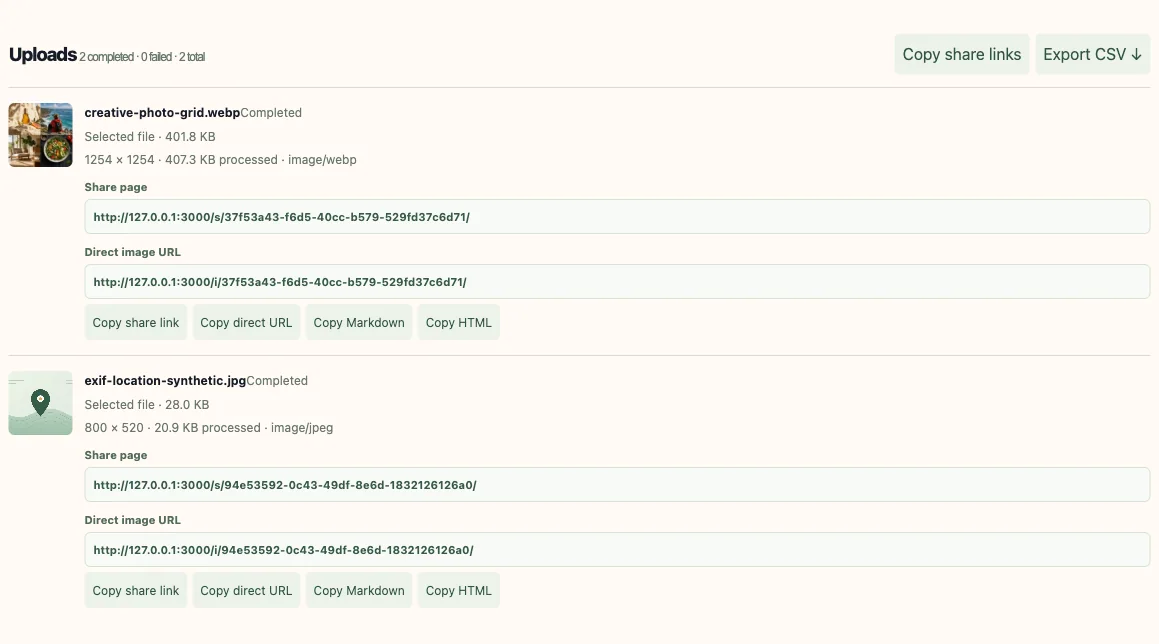
Image work is more than just creating a link to the image. A user can search for specific file names using the logged-in library. In addition, they can sort through uploaded images, create collections of images, tag each image with descriptive terms, view image specifications and control record keeping.
The amount of usage for each user is based on their signed-in account. When you move an image into trash, it will be hidden from the current library; however, the actual bytes will still exist.
Open the image library ↗



Visual sample of how images, collections, and search can be organized. The generated photographs represent examples of what is possible in the system. The signed-in library contains the images that you have uploaded into your personal account.
A Share URL is merely an address, and is not necessarily a means of controlling access to the file. There are many factors that will determine which individuals are able to access a specific file including: the route, image response, account policies, and caching behaviors.
An address that is difficult to find may be less likely to be found than a publicly available listing, however, once someone has obtained your address they can then share it with others. Therefore, an address is not a password, nor does it provide a guaranty of privacy.
Compare unlisted and password-protected links ↗The use of a password check is only effective if you have used one to protect both the page where users can view your images, and the image responses that are sent directly to users. You should always make sure that you check if someone has access to your content by checking their status while being signed out.
When you revoke or expire a request for a service, you cannot prevent subsequent requests to that service from reaching it. However, you can prevent a request that has been received from being processed by the service if it is still in the queue. You cannot delete the requested item if it has been downloaded to a client device. You also cannot ensure that other caches on the Internet will forget about the request.
Read about expiry and caching ↗Check the entire picture for personal data such as name, face, street address, account number, or other sensitive information prior to posting.
 DESIGN REVIEWS
Send a screenshot of the specific version you're working on and ask about the way it's laid out or how items are ordered visually. Use the share option so reviewers can access the page easily using their web browsers.
Plan a client review handoff ↗ PRODUCT CATALOGUES
Check that the product code, color and image angle are all included in the filename of every exported file. Also check the exported mapping data with your product catalog prior to linking to those URLs from any other system.
Prepare a filename-to-link manifest ↗ SUPPORT & DEBUGGING
Include a safe screenshot with your browser information, the steps to reproduce, what you expect to happen when performing those steps, and what actually happens when performing those steps. Make sure that any sensitive pixel information is removed from the screenshot prior to uploading it. Once you have saved a copy of the screenshot, check it for compliance.
Build a useful visual bug report ↗ EDITORIAL PUBLISHING
Only use a direct image URL if the publishing system can get the image back from that URL. Share pages are designed for users to see images, but they do not automatically allow you to embed images on other sites.
Check an image link that will not render ↗ CAMPAIGN HANDOFFS
Keep a log of each campaign file name with its corresponding generated URL. Also, ensure that all recipients are able to access the image and identify which version the image is being linked to.
Use the batch image URL workspace ↗ VISUAL INSTRUCTIONS
Share still images and diagram examples with a brief explanation. Keep essential instructions in the text of the page, as opposed to just providing an image.
Review formats and image controls ↗Choose the link type that matches the destination, then verify access and image details before sharing.
Explore image features and controls ↗Choose a supported still image, drag it into the uploader or paste it from the clipboard. Review the processed result, then copy the share page for browser viewing or the direct image URL for an embed.
People often use both phrases for any address that leads to an image. This product separates a share-page link, which returns HTML, from a direct image URL, which returns image bytes when access is allowed.
Choose a still JPEG, PNG, WebP or AVIF image up to 10 MB. After processing, copy the share page for a person or the direct image URL for an embed, then check that your destination can retrieve it.
A compatible destination can use the direct image route in an HTML img element or Markdown image syntax if it can retrieve the image response. A share-page URL usually returns HTML and is not a substitute for image bytes.
Yes. Open the screenshot workspace, paste an image from the clipboard when the browser supports it, or upload a saved screenshot. Add context and inspect the image for private details before sharing.
The batch workspace accepts up to ten images in one selection and sends them sequentially. It keeps each filename with its result and can export successful rows to CSV.
The uploader accepts still JPEG, PNG, WebP and AVIF images up to 10 MB each. Animated images and SVG are rejected. Processing creates a new encoded image, so keep the original when its exact bytes matter.
Anyone who can reach an image URL may be able to open it unless an access rule blocks the request. An unlisted URL can be forwarded, so review the image itself and use an approved access control for sensitive material.
A password check is useful only when it protects both the viewing page and the image response. For sensitive material, verify the access rule from a signed-out session and do not rely on an unlisted URL alone.
Expiry can deny later requests that reach the service after the cutoff. It does not delete the stored image, recall a downloaded copy or guarantee that every browser or intermediary cache has removed it.
The image library can move an image to Trash and restore it. Trash hides the record from the active library; it does not permanently erase the stored bytes.
A fixed retention period has not been published. Keep a separate original and avoid using an image link as the only copy of an important file.
Detailed notes on screenshot handoffs, image responses, batches and privacy trade-offs.

Select a static JPEG, PNG, WebP or AVIF image, view the processed version, and then select the link which best serves the purpose of your use. If you want to use the image as an embedded file, obtain a direct image URL. If you want people to see the image in their web browser, obtain a share page.
Choose an image