With a single focus, prepare your images for sharing. Upload, edit, arrange and share still photos with ease. Whether you are preparing screenshots, processing a small group of images, or refining an individual photo, choose the link that best suits where it will go.
TOOLS FOR THE IMAGE HANDOFF
A closer look at each workflow.
Explore the upload, review, organization and editing steps, with clear notes on supported formats, link behavior and image privacy.
01 / WORKFLOWUPLOAD
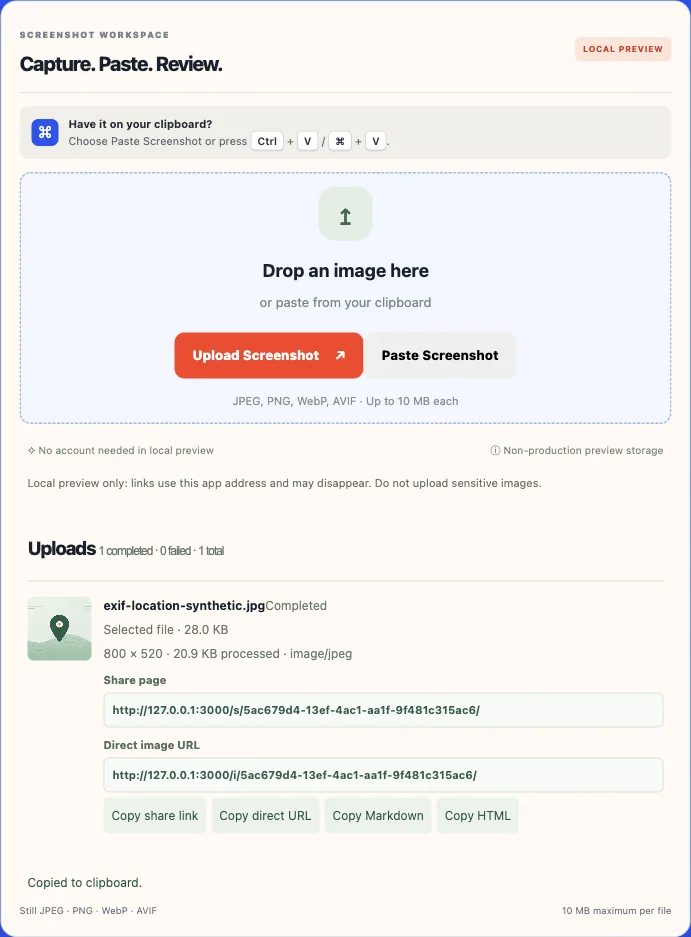
Upload and validate
Start with a file, a drop or an image pasted from the clipboard.
JPEG, PNG, WebP and AVIF inputs up to 10 MB per image; animated files and SVG are rejected.
The server decodes and re-encodes each accepted still image, then reports its returned dimensions, detected output format and stored size.
Exercise per-image rules on both the share page and image-byte route.
Configure a password, expiry time or revocation. A successful password unlock is image-scoped and temporary; changing policy invalidates earlier grants.
Keep the original file so you can compare the edited copy. Blur and pixelate regions are rendered into a new edited copy when saved; always review that saved copy before sharing.
Iterate without silently replacing the image you started with.
Crop, appearance and layer edits share bounded undo/redo history; up to 50 prior edit states are retained in the open editor.
The saved result is added as a new library image. Some filter previews are approximate; inspect the final encoded file and its dimensions before using it.
The uploader will accept any image file that is a still (not animated) image in one of the following formats: JPEG, PNG, WebP or AVIF. Each image may not exceed 10 MB in size. The AVIF format must use the AV1 image codec supported by the decoder. SVGs (scalable vector graphics) cannot be accepted as they are active document formats. Animated images will be rejected rather than flattened without notification.
Before being decoded, the request has a bounding limit. After decoding, the server verifies the format of the decoded request and the pixel limits. If necessary, it adjusts the orientation of the request and then re-encodes it. The description presented in the interface refers to the re-encoded version of the image, rather than the original file. When an image is re-encoded, there may be changes to the way the image was compressed or how colors are represented. Therefore, if these differences matter to you, you should retain your original image.
01
Choose or paste
Browse for an image, drop a supported file, or paste image data from the clipboard. A selection above the batch limit is trimmed to the supported count with a notice.
02
Decode and validate
The server checks the actual image content and dimensions instead of trusting the filename alone. Corrupt, unsupported, animated or oversized files receive an error.
03
Review the returned asset
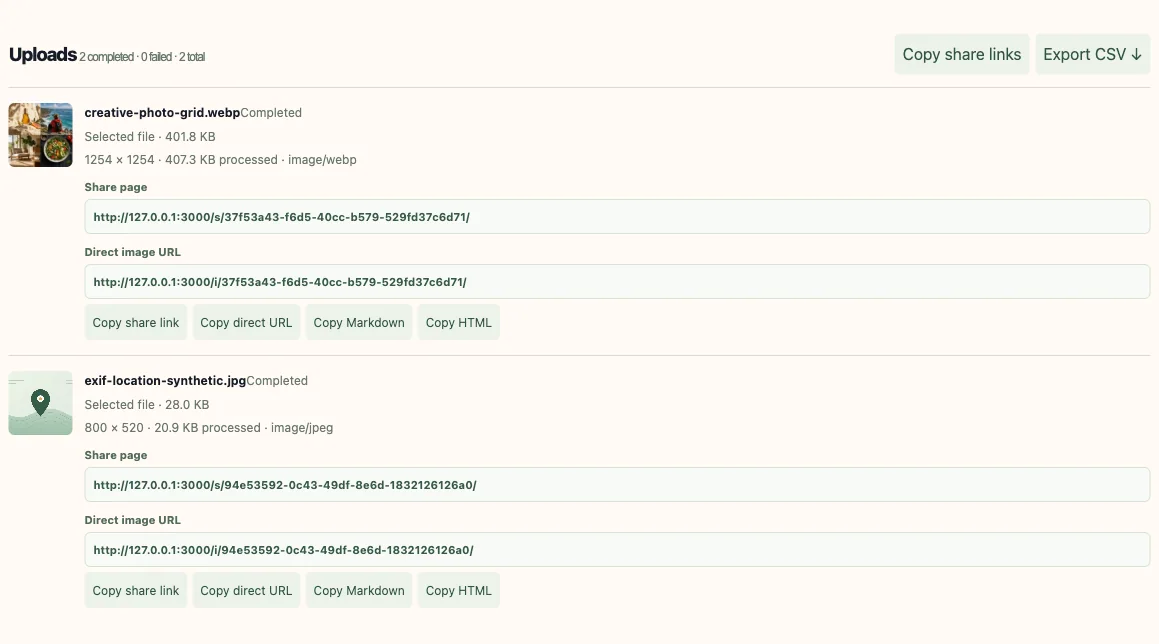
Check the final filename, format, pixel dimensions and stored byte size. The queue shows each result separately, so a failed item does not hide a successful one.
Pick a link that matches the destination
The share page URL will open a small window above the image so that users have a sense of where they are in relation to the file and have a consistent way of accessing it. On the other hand, the direct image URL will return the actual image representation of the file. This is exactly what the HTML image tag and Markdown renderer require.
When a user types in a share-page URL they will be directed to an HTML page that allows them to view your shared content. When a user enters a direct-image URL they will receive image data which can then be used to create an embedded version of the image. You should check if the person you want to send your link to has access to that specific link before you share it, and you should make sure that the permission settings are correct.
Use the URL that fits the thing consuming it
Destination
Share-page URL
Direct image URL
Human review
Useful: shows a page with filename and image
Opens only the image; little context
Markdown or HTML embed
Usually wrong: this is an HTML document
Correct form when publicly reachable and permitted
Recipient access
Requires access to view the page
Requires access to retrieve the image bytes
Password or expiry policy
The server checks the share state
The image-byte route checks the same share state
Manage an image after upload
Once signed in, you will be able to view all images uploaded to your account. In addition, the library includes features such as searching for files using their names, sorting files based on when they were uploaded, alphabetically, or by how much space they take up. Additionally, you may create and manage collection(s) of images; tag images; view information about each image; and find out how many times an image has been used.
Bulk selection will allow you to tag images, move images to different collections, or place images into Trash. Images that have been placed into Trash may still be retrieved. When you move an image into Trash, it is no longer visible in your active library, however the actual image data is still stored on your computer.
HOW THE PARTS CONNECT
A repeatable edit-and-organize loop
01
Select source
Open an owned image and keep its original record.
02
Edit a copy
Crop, adjust or add reviewed annotation layers.
03
Compare output
Check dimensions, format, legibility and privacy.
04
Organize
Name, tag or move the new image into a collection.
The editor returns a new library asset so the initial upload remains available for comparison.
Edit pixels and annotations in a new copy
A user can select by dragging over the crop area, as well as enter the exact coordinates of the upper left corner (left), upper right corner (top), width, and height. In addition, there are several output options available: width and height; quarter-turn rotation; horizontal and vertical flips; PNG/JPEG/WebP format; and output quality. There are also many editing tools available to the user, such as straighten; brightness; contrast; saturation; blur; sharpness; and five different filters (original, monochrome, vivid, warm, and cool).
Annotations are separate layers used when creating. Types of layers include: text; rectangles; circles; arrows; frames; stickers; freehand strokes; textures; bounded blur or pixelated areas; and images from your own library. You may create, select, reorder, hide, duplicate, or delete layers. Both image controls and layer modifications are covered by undo and redo.
Test access rules without overstating security
A share may include a password, expiration date, or revocation condition. Both the viewing page and direct access to an image should be subject to access control. A password or expiration date does not allow for recovery of a downloaded or stored copy.
Only use access control after determining how the controls affect the image and preview of the image. When an expiration date is applied to a request made for an item from a service, that item will be unavailable to anyone who attempts to request it at a later time. However, setting an expiration date does not ensure that no copies of the item have been downloaded, nor does it ensure that all caches containing responses to previous requests for the item have purged those responses.
HOW THE PARTS CONNECT
An access decision applies before image delivery
01
Request arrives
Share-page request or direct image request.
02
Check policy
Evaluate revocation, expiry and any scoped password grant.
03
Allow or deny
Return the page/image only when the local policy permits it.
The page and the direct byte route both need the current owner, policy, expiry and grant state.
Storage and privacy have a boundary
The processed image might differ from the original image in terms of format, dimensions (width and height), how colors are managed, and possibly in any included metadata. It is recommended that you retain a copy of the original image if the exact byte sequence of that image is critical. Before you use the processed image, examine the file provided by the system.
Re-encoding will strip away some of the metadata associated with the original file; however, re-encoding will not mask the identity of people, their faces, where they live, etc. that are contained within the image. If you need to make sure this information is hidden, then use a metadata viewer to examine the newly encoded file.
Confirm that the recipient can open the link before including it in a client handoff.
Inspect the final image and the actual route that a recipient would use.
Use the metadata guide to distinguish file fields from visible scene clues.
A link is not a substitute for reviewing the image itself or choosing an access rule that fits its audience.
ANSWERS BEFORE YOU START
Frequently asked questions
Can I use a direct image URL on my website?
A direct image URL can be used when the destination can fetch the image bytes and access is permitted. Test the response in the destination before publishing it.
Which image formats can I upload?
The current uploader accepts JPEG, PNG, WebP and AVIF still images up to 10 MB each. Animated formats and SVG are rejected. The editor exports PNG, JPEG or WebP.
Can I edit an image without replacing the original?
Yes. Save edited work as a new library item so the original remains available for comparison.
Does the blur tool make a private image safe to share?
A blur or pixelation layer changes the saved copy, but review the full image at its intended size. Other identifying details can remain outside the edited region.
Are password and expiry settings available?
Password and expiry settings can restrict future requests when both the viewer page and image route enforce them. Check how the access rule works before relying on it for sensitive material.
Does expiry delete the image?
No. Expiry prevents later requests that reach the application from being allowed under the expired policy. It does not delete the stored object, recall a download or guarantee removal of every cached copy.