Use stable product identifiers in filenames and a manifest, upload in manageable batches, then verify every image against its SKU before importing links into a store. Separate direct image URLs from human-facing share pages, test the destination importer with a small sample, and keep the original product files in your own catalogue archive.
Treat the image set as catalogue data
A product photograph may appear visually accurate while being associated with the incorrect product. Typically, this occurs when images are received under generic file names (e.g., IMG_4821.jpg), spreadsheets are processed independently of the image data, or the sequence in which images were uploaded is used as an unchanging identifier. The solution to this problem starts prior to uploading; create a long-term relationship between every image and its product and perspective.
This workflow is intended for those who manage catalogs, operate small retail stores, agencies, and/or engineering departments transferring images to their e-commerce platforms. The workflow describes the steps needed to create and review a batch of image links prior to submitting them to an e-commerce platform. The workflow does not state what the average number of images processed per hour would be, nor does it guarantee that a retailer will accept any specific file format or link structure.

Maintain the product identifier, view, and revision within the name of the file or in the manifest. Retain the original file(s) as well as the resized/re-encoded version(s). Once a link has been added to a catalog, changing the original file name will not always result in updating the item and replacing its stored image.
A controlled product-image batch
- 01PrepareName each image with a SKU and view before upload.
- 02UploadTrack per-file success and preserve the file-to-result mapping.
- 03MapExport a manifest and align it with the destination schema.
- 04VerifyInspect the imported product gallery and correct mismatches.
Use filenames that are useful after sorting
A practical naming convention for images is SKU-view-revision.ext, i.e., MUG-BLUE-front-r02.jpg and MUG-BLUE-side-r02.jpg. By putting the SKU at the beginning of the file name, the files will be sorted alphabetically in the folder. The "view" part identifies the angle from which the photo was taken, and the "revision" portion indicates if this image has been replaced or edited. The naming convention should be kept simple enough that anyone can understand it without having to refer to a naming guide.
Do not use file names that show customers what they purchased or internal campaigns. Instead of using a product title (which marketing might alter), use a stable catalog identifier. If there is punctuation in your SKU that can cause problems for either the storage system or the importer, make sure to document how you can safely map the SKU in the manifest instead of simply changing the SKU.
In addition to using a single word for every angle (front, side, back, close up, package, or life-style), use the exact same words when referring to each angle. This means you will use the exact same words to describe each of the angles in your image set. For example, if you call the front angle of an item "front," you should refer to that same angle as "front" in all of the other angles in your image set. When reviewing your image sets, you can easily identify if there is a missing angle by seeing how predictable the vocabulary is.
Check dimensions, format, orientation, and colour
Before you export all of your files, check the image guidelines for the site that will receive them. As of now, Shopify states that they support product and collection images that measure up to 5000 x 5000 (or 25 megapixels) and do not exceed 20MB. Shopify also says that square product images that are 2048 x 2048 usually work best. These limits and recommendations are specific to Shopify, not necessarily to all eCommerce sites. [1]
Using a consistent aspect ratio will help keep a product grid looking organized; however, cutting all images into squares can cut out vital packaging or product shapes. To avoid this, keep the original master image and make a deliberate catalogue crop. Before deciding on one export size, check what other ways the target theme will use images (such as alternate images, thumbnail images, zoom, and mobile). If the target theme displays the image as an HTML image element, provide alternative text describing the useful product view instead of the filename. [7]
After you have exported the image, please verify its orientation. The camera rotation can be saved as metadata which can be viewed differently by various image editing software. Also check the transparency of the image, the color profile used for saving, and the actual pixel dimension of the image. Just because an image file has a name ending in.jpg does not mean that those bytes are indeed JPEG format. A web service may decode and re-encode the image that you upload.
| Property | Why it matters | How to validate |
|---|---|---|
| Format | The destination may accept only certain image types | Check platform documentation and inspect file bytes |
| Dimensions | A tiny export can look soft; a huge one can exceed limits | Read actual pixel size and destination rules |
| Aspect ratio | Mixed ratios can create uneven catalogue cards | Preview the target theme with representative products |
| Orientation and colour | Metadata or profile handling can change appearance | Open the exported copy in the target catalogue view |
| Filename | Human-readable names reduce mapping mistakes | Sort by SKU and confirm each view label |
Map each image to a stable product identifier
Use the same product identifier as used by the destination catalog (usually a SKU or platform product ID) to link products together. Although product titles are good references, they may change frequently due to edits or translations. To make reviewing and filtering the batch easier, include this product identifier within its own manifest column.
Row points to single source image and single product view. Use multiple rows for products with different angles or follow the destination’s multi-image format as documented. Do not combine links into a single cell until the target importer provides instructions on how to separate them.
Prior to importing, check the total number of rows against what you anticipate will be the total number of images and product angle shots. There may be valid reasons why there would be duplicate SKUs (e.g., if there were different views) but there should not be any duplicate filenames. If there are, this could mean that you have overwritten something by mistake. Keep track of how many products and how many files you have. The two numbers will be different if each product has a gallery.
| SKU | Product label | Filename | View | Review state |
|---|---|---|---|---|
| MUG-BLUE | Blue stoneware mug | MUG-BLUE-front-r02.jpg | Front | Ready for mapping |
| MUG-BLUE | Blue stoneware mug | MUG-BLUE-handle-detail-r02.jpg | Handle detail | Ready for mapping |
| LAMP-OAK | Oak table lamp | LAMP-OAK-front-r01.webp | Front | Ready for mapping |
| LAMP-OAK | Oak table lamp | LAMP-OAK-room-r01.webp | Lifestyle | Needs crop review |
| BAG-CANVAS | Natural canvas tote | BAG-CANVAS-front-r03.jpg | Front | Ready for mapping |
| BAG-CANVAS | Natural canvas tote | BAG-CANVAS-interior-r03.jpg | Interior | Ready for mapping |
Export a manifest that another person can audit
A useful manifest contains source filename, product SKU, view, upload result, direct image URL, share page URL, and other required information. If your storage system generates a stable record ID, include that in the manifest. This allows you to locate failed uploads by something other than their location in a table.
In order to prevent malicious use of spreadsheet data, make sure to use only one line for each uploaded image. If you have comma-separated value (CSV) strings that contain either a comma or quotation mark, you need to properly quote those CSV values. You should also consider anything that comes from the user as untrusted input before using it to generate a spreadsheet. The OWASP documentation states that spreadsheet programs can view any cell starting with a formula character as being an executable formula. Therefore, while quoting CSV values will help protect you from many forms of attack, it does not provide complete protection against all spreadsheet applications. [6]
Exporting credentials, private access tokens, and/or internal object keys should only occur when the receiving integration needs those exports and there is a verified way for that integration to handle secrets. A single public manifest could potentially expose every URL directly in one location. This means that you should treat the public manifest with the same level of care as you would the images that it indexes.
Upload in batches that can be reviewed
When auditing a directory of files, it can be difficult to review all of the files if they are submitted together. Therefore, you may wish to begin by submitting a small, random sample of files. The sample should include at least the largest file, files of each type of images (PNG, JPEG, etc.), multiple photos of a single product (SKU) and a file name containing special characters. This will allow you to identify any errors in the way your files are being validated or mapped to other data prior to submitting the remainder of your catalog.
Create a separate queue for every file that is in transition from a state of waiting to being uploaded, successfully uploaded or un-successfully uploaded. Do not assume the entire batch was successful if at least one file returns a link. Check every row of data as it is completed, verify the name of the file and the image, then only output the rows that meet your quality standard.
To retry only those files that failed the initial attempt, examine why they failed. If the file is corrupt, if it has an un-supported format, if there are two files with the same name, if you do not have permission to access the file, or if your connection to the internet was interrupted during the transfer, then these issues will require different solutions. Keep the original list of all files that were attempted to be uploaded and compare each file that you attempt to upload again with the original SKU and view, so that you do not accidentally create a second product row when you really just wanted to upload the first file again.
Two-file batch result
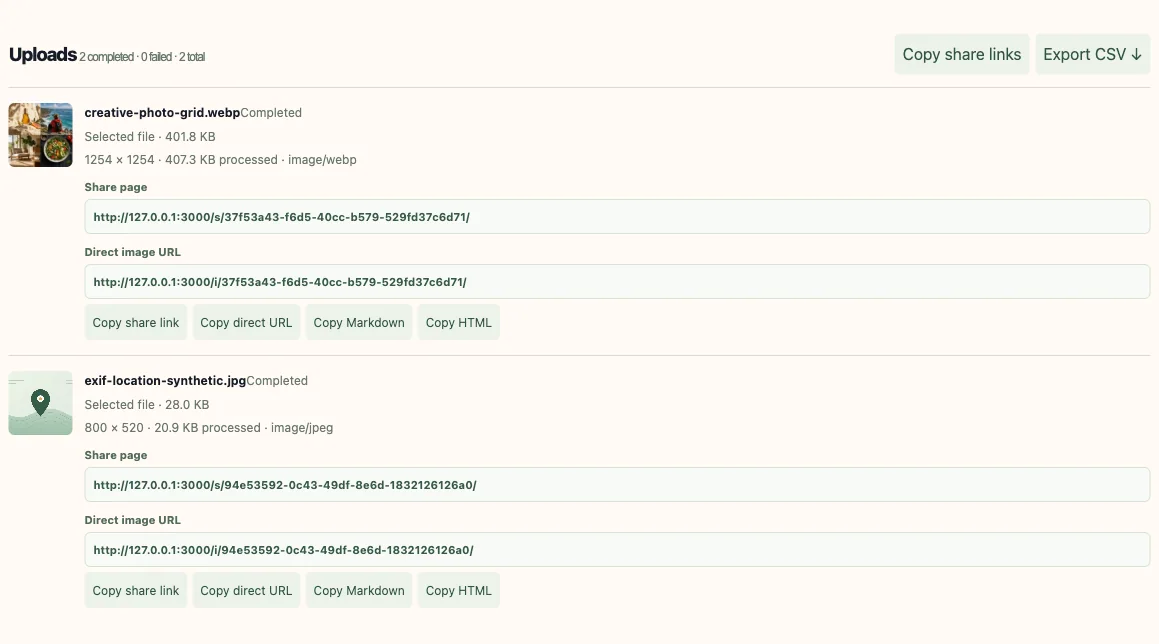 Batch upload result
Inspect what the destination importer actually does
An importer will download remote URL images to the WordPress media library. This is noted in WooCommerce documentation for using external image URLs when importing products via CSV files. The behavior of an importer is dependent upon the importer being used and other plugins/add-ons installed on the site. [4]
When using the built-in WooCommerce CSV importer, you will be able to see which columns were successfully mapped and which rows were skipped. The WooCommerce CSV importer documentation also states that users should check column mappings and split larger imports if they are experiencing server limit issues. It's recommended that you test your setup (WooCommerce version and plugins) in a staging environment using a small file prior to relying on the importer's ability to map columns. Please note that even if a column has "image", "URL", or "photo" in the title, it may not automatically be imported. [3]
Shopify's Product Media Guidance outlines what types of media it supports and how they can be transformed. In addition, there are likely other requirements based on your product workflow that will apply to CSV images. You should review the most up-to-date documentation to find out exactly where you need to go to complete this type of import and whether the system copied the image from the source or if it just referenced the remote location. Just because one line of your CSV imported successfully does not mean that all of your lines were processed correctly. [2]
- 01
Read the target importer guide
Confirm column names, image ordering, remote-fetch requirements, and supported formats.
- 02
Map fields on a staging copy
Review the importer’s mapping screen and correct fields it does not recognize.
- 03
Import a small representative sample
Include more than one product and multiple views for one SKU.
- 04
Inspect the resulting product pages
Check featured image, gallery order, crop, and the SKU association before scaling up.
Protect originals and make replacements traceable
The original shot files must remain in either the "source of truth" catalog or the asset archive. A link manifest is not a backup; it is an index. When a host provider re-encodes an image, the resulting file could have different sizes (dimensions), compression, orientation, color, and/or metadata. Therefore, keep the master file so that you can reproduce the export that was approved.
Publish a new revision ID whenever a picture has changed and then update the appropriate SKU/view record. The previous image will still be displayed on some cached storefronts and catalogs if the same URL is overwritten. It is easier to compare the reviewed image against the live image using a versioned URL.
The reason for replacing something and the person who authorized it, should be documented as long as this is done per your shop's procedures. Do not base an authorization on a simple successful upload. Uploading successfully means we have received the data but the accuracy of the product will require someone to compare the image with the product and verify how it displays.
Check copyright, privacy, and visible product details
Before you publish, verify that your organization has the legal authority to publish each image and all identifiable elements such as logos, people, products/packaging, and/or third party artwork. Images may contain metadata (e.g., author, rights, when/where taken) and/or pixel-level data (e.g., work area/workspace, home/office address), which could potentially compromise an employee's privacy. Organizations should have a license and privacy review process in place prior to publishing in bulk.
To ensure that your products are being represented accurately, compare color, variations, dimensions, packaging, and the product's image in the catalog record. A batch may be structurally correct, but if the blue variant has an image of a black product, then it is semantically incorrect. Have someone review the product that can tell you if the SKU matches the image as opposed to simply checking the syntax of the CSV file.
Keep an audit of what was imported, when, and how errors were corrected. This is especially helpful when the destination silently skips rows or a plugin update alters the importer. An import report and a reconciliation list will be more valuable than a simple "done" message that hasn't been verified.
Quality control after import
- 01MatchConfirm SKU, variant, filename, and intended angle.
- 02ReviewOpen the product page and inspect crop, order, and detail.
- 03ReconcileCompare expected and imported rows; resolve skipped records.
- 04ArchiveKeep source files, manifest, and correction history.
Troubleshoot common batch failures
If the file was rejected by the uploader, please verify the actual format, size, dimensions, and the validity of the bytes. Changing the name of the file's extension does not change the type of the file. In addition to verifying that the upload succeeded, also determine if there is a blank URL in the CSV; if so, review the export mapping and the status of the row before re-uploading the entire batch.
WooCommerce states that there can be issues with importing images remotely on some installations. An importer may experience difficulties in accessing a remote image due to several reasons, such as: the server cannot communicate with the host; the server rejects the TLS used by the host; the server does not allow for redirection from the host; or, the importer needs to authenticate itself to access the remote image. Therefore, you should attempt to access the remote image directly from your destination environment using the provided URL, or utilize the importer's built-in support for accessing local media. [5]
If the correct image is showing up for the incorrect item, pause the import process and compare your data based on SKU (not based upon row number). Be sure to check for duplicate identifiers, proper sorting of the data, and how multi-image delimiters are set. After you have verified that the image mapping works correctly on a small staging dataset, you can restore your original file and start the import process again once you've confirmed that the sample is working properly.
| Symptom | Check first | Safe next action |
|---|---|---|
| Upload rejected | Actual bytes, size, dimensions, file corruption | Convert a copy to an accepted format and retry that file |
| URL column is blank | Per-file state and CSV field mapping | Re-export successful rows and reconcile the record count |
| Importer cannot fetch URL | TLS, redirects, authentication, server access | Use the documented image workflow in a staging test |
| Image belongs to wrong SKU | Identifier and sorting or delimiter behavior | Stop; correct the mapping and verify a small sample |
| Store shows previous image | URL reuse and cache lifetime | Publish a versioned asset and inspect the destination cache |
Scale only after a small import reconciles
A dependable bulk process has an end-of-process point prior to widespread change of the catalog. Choose a limited sample, map the sample, import the sample, examine the actual product pages, and compare the anticipated file list to what was produced. If there are errors in any row, correct the pipeline at this time because the scope of the impact will be limited.
When importing a very large catalog, there may be limits imposed by the destination server regarding file size, memory usage, or processing power. WooCommerce provides documentation that states that if a single import becomes unreliable due to these server constraints, you should consider breaking down the import into smaller pieces. WooCommerce also recommends using a test import on your staging site prior to attempting to do so on production. While WooCommerce's advice is specifically directed toward their import tool and deployment practices, please consult your hosting provider for their specific requirements. [3]
Do not make any performance claims based on tests that were never performed. When measuring your throughput in the future, record the sample size used, file sizes, format types, hardware/host, import software version, and results. This article makes no performance claims regarding benchmarking because no controlled ecommerce import was conducted for this article.
Use this checklist for the next product batch
A batch needs to include: a defined set of expected files, a standard naming convention for all files within a batch, and a manifest that clearly defines how each SKU, view, and resulting URL are related to each other. When working on a project, keep the original files separate from your working copy. Check what image specifications currently apply to the platform where you will be exporting images.
Once you have completed the upload process, verify all successes and failures. Also check the created CSV. Next, perform the destination import on a typical sample from your staging environment. Review the field mapping. Finally, open the resulting product pages. Verify the primary image, gallery ordering, variant matching, and display cropping. Follow the same procedures when applying these steps on a larger scale.
If you need someone from your team to approve the photographs first, provide a review page and a direct URL to the image in two separate areas. When sharing one screenshot, use the versioned client review workflow. When embedding catalogue images, test the end product with the direct URL checklist.
- Each filename and manifest row preserves a stable product identifier and view.
- The source file, upload result, and destination row can be reconciled.
- A small staging import has been visually checked against the product catalogue.
- No unmeasured speed, platform behavior, or image rights claim is assumed.
Frequently asked questions
Should I use a share link or direct image URL in a product CSV?
Use the URL type the destination importer documents. A share page is designed for a person and may return HTML; a direct image URL returns the image representation an importer may download. Test the exact importer route and confirm whether it copies the file or retains the remote URL.
What should product image filenames include?
Use a stable SKU or product identifier, a consistent view name, and a revision when the image changes. Avoid customer details and avoid relying on upload order. Keep the filename readable enough for a person to reconcile with the catalogue.
Can I import all product images in one large CSV?
Maybe, but importer and hosting limits vary. Test a representative small batch on staging, inspect the field mapping and resulting product pages, and split the file if the documented server limits or observed failures require it.
Does WooCommerce keep a remote image URL or download a copy?
Behavior depends on which importer and extensions are used. WooCommerce documentation for its Product CSV Import Suite describes downloading external image URLs into the media library. Check the exact importer version, then verify the resulting media record and product gallery.
How do I prevent a CSV from assigning images to the wrong product?
Keep SKU in its own column, use one row per image when appropriate, and reconcile by stable identifier after import. Test multiple views for one SKU and multiple products in staging. Do not rely only on sorted row order.
How large should an ecommerce product image be?
There is no single size that applies to every shop. Read your platform’s current requirements and inspect the theme’s display sizes. Shopify, for example, documents its own image dimensions and file-size limits; these values should not be generalized to other platforms.
Sources and further reading
References are linked beside the relevant claims. Source pages were checked on the dates shown; product documentation and standards may change.
- [1]Product media types ↗
Shopify Help Center · Checked
- [2]Add product media with Shopify ↗
Shopify Help Center · Checked
- [3]Product CSV Importer and Exporter ↗
WooCommerce Documentation · Checked
- [4]Product CSV Import Suite FAQ and troubleshooting ↗
WooCommerce Documentation · Checked
- [5]Import Export Suite troubleshooting guide ↗
WooCommerce Documentation · Checked
- [6]CSV Injection ↗
OWASP Foundation · Checked
- [7]The img element ↗
MDN Web Docs · Checked