A useful bug report pairs one focused screenshot with the exact steps, environment, expected result, and observed result. Capture the state that proves the problem, redact sensitive information in a copy, and attach it through the issue tracker or a link that every intended reviewer can open.
Show the failure and the context around it
A screenshot can demonstrate that a button cannot be clicked, an image is absent from a webpage, or a dialog box covers part of a web page. However, it rarely provides insight into what transpired prior to taking the screenshot. Therefore, readers of the screenshot must also understand the account status, browser used, size of the computer screen, and series of steps that resulted in the visual representation.
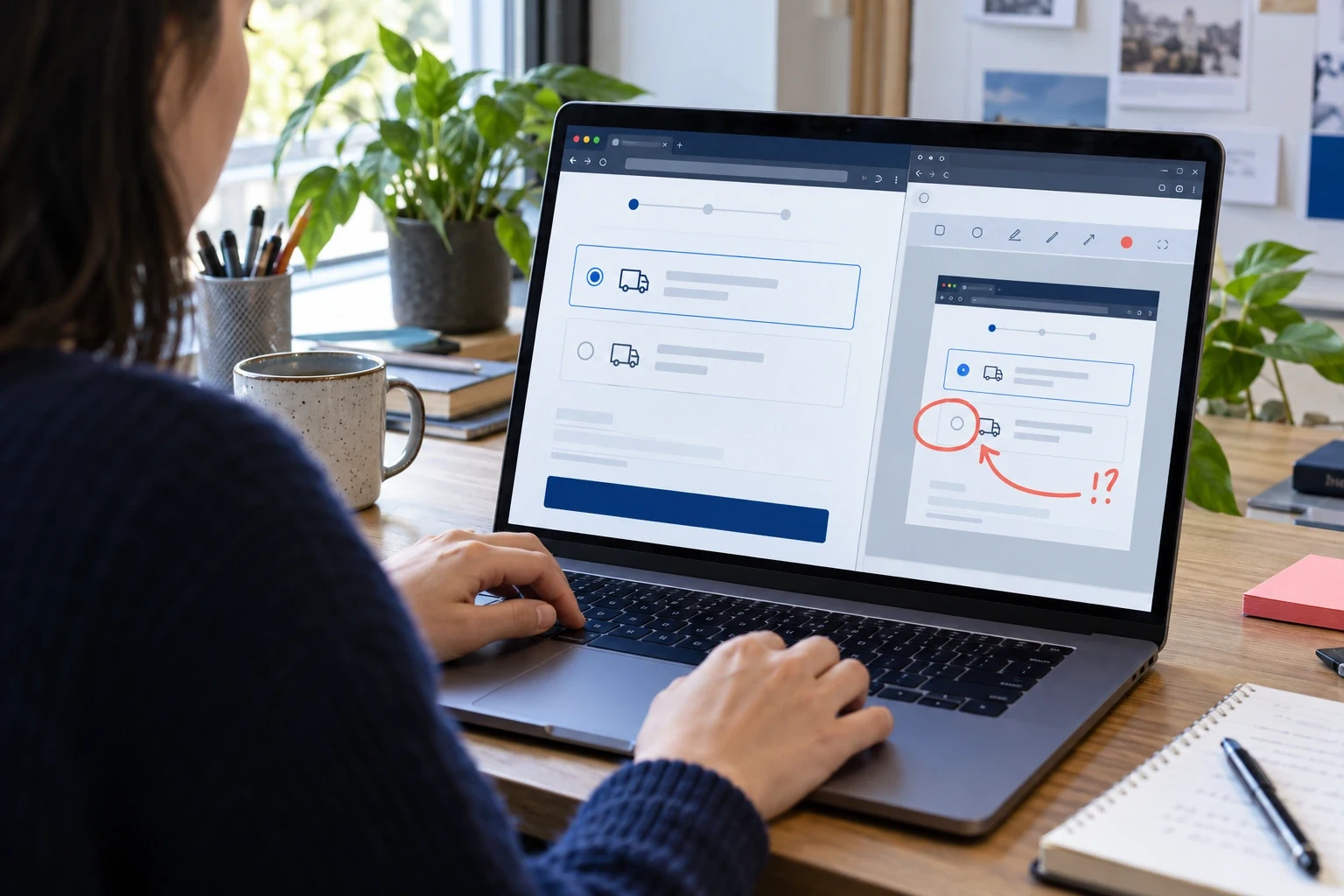
The image should be viewed as part of a short report, but not as the report itself. It's important to capture enough of the user interface (UI) to allow identification of the specific page and the state of the system at the time. After capturing this information, you will need to explain how you arrived at this point in the application. If the image is either too large or too small to be legible, you should provide both a cropped version of the image with only the relevant parts, and a full-size version of the image that includes all of the surrounding content so that the reader can see the context of the action.
Before you file, please determine if a peer will be able to duplicate the problem on their own (without a phone call). If not, provide the missing step(s) or environment details. Good tickets save time because they reduce the number of potential sources of the problem; they do not save time simply because they include many screenshots.
Evidence plus reproduction
- 01ReproduceRecord the starting state and the action sequence.
- 02CaptureShow the resulting screen and the relevant control.
- 03CompareState what should happen and what happened.
- 04Share safelyAttach the redacted evidence where the team can access it.
Capture a useful area on Windows
On a contemporary Windows device, pressing Windows+Shift+S will launch Snipping Tool's controls for capturing your screen. You have three choices to capture: "rectangle" to select an area, "window" to capture the current application, or "full screen" if you need to capture the desktop along with the application as part of the issue. When you make your selection, the captured image is transferred to the Snipping Tool window so that you may add notes to it prior to saving. [1]
When a menu closes immediately after you begin moving the mouse pointer, use the delay setting in the Snipping Tool to create the required condition for capturing. If the issue is related to a full-screen application or a window, be sure to capture both the name of the application and sufficient context from the user interface (UI) around it so that the conditions under which the problem occurred are easily identifiable. Do not include any unrelated notification popups or other items on the desktop. [1]
Check to ensure that the text on the controls is legible in its final size by using the screenshot preview. Prior to making destructive changes, save the original captured image. Create a second redacted copy of the image if there are values that need to be hidden. The saved file must be the same version as the one being attached so your report and evidence remain consistent.
| Device | Common capture path | Useful choice for a report |
|---|---|---|
| Windows | Windows+Shift+S opens Snipping Tool | Window or rectangle; delay for menus |
| macOS | Shift-Command-3, 4, or 5 | Window, selection, or timed capture |
| iPhone | Side+Volume Up on Face ID models | Crop or mark up the captured screen |
| Android | Power+Volume Down on many devices | Use Capture more where scrolling capture is supported |
Capture the state on iPhone or Android
On iPhones with Face ID you will need to simultaneously press and release the side button and volume up button. For iPhones with Touch ID, you will need to simultaneously press and release the side button and home button. After taking a screenshot, you may crop, annotate, save or share the screenshot. In addition to being able to take screenshots, Safari allows you to take a "full-page" screenshot if the page extends past what is visible on your device. [3]
Although manufacturers may have other options available, the standard way to take a screenshot on an Android phone is by pressing the power button and volume down at the same time. On Android 12 and above, Google says that most screens that support scrolling will let you create "scrolling" screenshots. However, some apps like bank apps, manufacturer overlays, or secure screens can be different than what Google states, therefore you should check the created file. [4]
Mobile bugs are usually dependent on a small screen area (viewport), keyboard, screen orientation, or how far down the user has scrolled. Please include the mobile device type and OS version with each bug report, as well as if the software keyboard was displayed. To show a flow through a series of steps on a page, a long screenshot would be best; however, if there is an issue with just one control, then a shorter cropped image may be simpler to examine.
Crop and annotate without obscuring the proof
Crop out irrelevant areas of your computer's screen (the "desktop"), however, make sure to include all of the area that is required for understanding why the action failed. Include the button itself, the text on the button, any error/validation messages near the button and sufficient parts of the webpage to determine what form the button is associated with. While a cropped image that does not contain the button's label may look better than an un-cropped image; it will not be useful for documentation/evidence purposes.
Use a single consistent annotation format: either a thin box or an arrow using a color that contrasts with the background. Draw around the region of interest instead of over top of it. Keep an unmarked copy of the source material when you create an annotation that alters the appearance of the interface, so an engineer can verify that your annotation has not concealed another symptom.
When adding images to your tickets, please do not include any additional sentences as part of the image. Text within images cannot be quoted, searched, translated, or read using assistive technology. Instead, use a short caption in your report, and provide descriptive alt text for each image if the system allows.
A crop that preserves evidence
- 01KeepControl label, disabled state, nearby message, and necessary page context.
- 02RemoveOther windows, unrelated personal data, and empty desktop margins.
- 03MarkUse a small outline or arrow that does not cover the evidence.
Choose a format that survives review
Because of the preservation of text and sharp lines, PNG is a good option when creating screenshots of an interface. On the other hand, if you use JPEG, you will find compression issues with small text. A full-size PNG screenshot with a high resolution will be large. The right choice depends on what evidence you need to provide with the screenshot and the limits of the issue tracker you are uploading it to.
Don't make changes to the file type of an image with animation or a lot of colors that will alter what you want to illustrate. When the problem is a quick change from one state to another (or when someone hovers over something), a short video of the screen could be more helpful than just taking a photo of it. Make sure to keep the video on point and abide by the team's policy about how to record personal information.
Open up the saved file again prior to submitting. Ensure that your image has correct orientation, is sharp, is of proper size, and includes the redacted portion from the exported copy. Certain types of drawing programs create an overlay on top of the image that is visible but not flattened into the image itself, or will create another file that differs from what was viewed in the preview window. After you submit, review the attached version of your image.
Remove private data before the image leaves your device
Screenshots may expose customers' names, emails, access tokens, orders, private messages, internal hostnames, and browser extensions. Review each part of the screenshot, including the notifications, tabs, bookmarks, and URLs (including query strings). If a token was briefly exposed during the screenshot, it could allow someone to gain access to the application, regardless of whether or not the application itself appears harmless.
To make sure that the image doesn't contain any secrets, you should use either a solid colored shape or crop the photo so that the secret portion of the photo is completely gone. Blurring and pixelation do not always make it difficult to read part of the text, and if you use a "flattened" copy, then anyone who opens the file in an editing program won't be able to delete the annotations you added. Once you have made sure that the secret information has been removed from the photo, you will need to export the image as a "flattened" copy, and then check that the image looks good at 100 percent.
If you are filing a public issue, please do not use any personal account identifiers or private URL's; alternatively, you can use a test account that will not compromise your privacy. The original information used to file the public issue should remain in the designated safe storage area if the engineers require access to it. It is possible that the public issue tracking system could be copied, indexed, or stored even after the public issue is resolved.
- Review the full screen for account, customer, and browser information.
- Redact with an opaque edit and export a flattened copy.
- Open the exported copy to confirm the secret is no longer visible.
- Use a private tracker when the evidence itself must remain restricted.
Write reproduction steps that another person can follow
When starting a test with a given user state (such as a new test user account, a specific page, or items that are currently in the shopping cart), list the steps you took to reach that state. Provide only the value of each action when the value is important. For example, “Click Continue” provides very little information, whereas “Add the blue mug to your cart, select ‘Pickup’ as your shipping method, and then click ‘Continue’” gives more detail about what happened.
In addition to separating the expected from the observed results, use specific language to indicate how the product performed. Use words that explain why the product failed rather than using the word "broken." For example, explain if a request failed, the page froze, or the incorrect content was displayed.
Provide environment details that could affect how your product works: for example, the product version or web address (URL), the type of web browser you used and its version, the computer's operating system, what size screen you have (viewport) or what kind of device you are using, what role your account has, and if applicable, the speed of your internet connection. Don't post the entire contents of a user profile or customer file. Provide the minimum amount of information possible to help another person replicate the problem.
Use the issue tracker as the evidence record
In addition to asking the user for their current behavior, how to reproduce the problem, what environment they are using, and additional context, GitHub Issue Forms also allow users to upload images or logs directly into the form. Because of this, using a structured template will help increase consistency among reports as the person reporting the issue knows what information the project requires prior to submitting. [6] [5]
Directly upload to the tracker when its permission, retention and file size limitations align with the issue. Uploading directly will place the image next to the discussion, however, the level of access to the image will be determined by the tracker's level of access. Images that are uploaded into an issue on a public repository should be considered public documentation.
An external image link should be used if the tracker allows it and if the link is stable during the life span of the issue. A share page provides reviewers with human context while an image URL can be embedded in Markdown. If you want to understand why there are two different ways to use images, please refer to the Markdown image troubleshooting guide.
Prepare the capture, upload, and verify the result
A report is produced in a short sequence. The first part of the sequence is reproducing the problem in an isolated account, then capturing the results produced, removing sensitive data and reviewing the exported copy, and lastly giving the file a name that relates to the step in the ticketing process. Producing the report in this manner will prevent the attachment from being a last minute unreviewed screenshot.
The provided product capture includes a sample image to illustrate what the product will look like when it returns the requested dimensions and links. If you plan to share this report with others, please include an image URL that the person who will review your report has access to. Upload your screenshot using the upload workspace.
Once you attach an image to your issue, you can re-open it as a reviewer or open a new browser session. Make sure that the image loads properly, the caption provides more information about what is happening, and that there is no sensitive data displayed. When testing links to other sites, test both the share page and the direct image response separately.
Image upload result
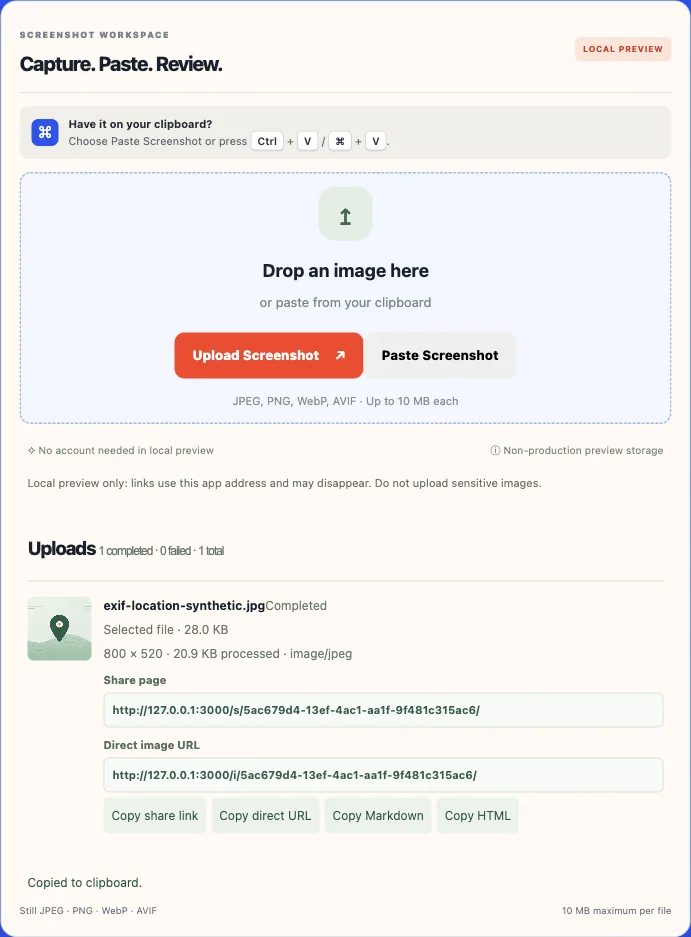 Image upload result
Handle image links that stop working later
A temporary image link may no longer be available when you need to refer back to it. The image could be expired, deleted, the user’s account could have been removed, permissions on the image could have changed, or the host may have altered its hotlink policy. Therefore, if the report is a critical component of the project's historical record, ensure that the image is stored in a permanent location with a similar retention period as the project's historical record.
Do not think that when you change an image links' expiration that you automatically remove all copies. Your browser, an intermediate server, or even a reviewer could have downloaded a copy of the image. The guide to image expiration and caching explains how you must consider both the link's life cycle and your cache policies when deciding on whether to use short-term links.
For private client evidence, set a clear owner for each file, along with a review date. When an asset is no longer required per your team's retention policy, delete the asset. Since a screenshot may contain more sensitive personal information than the issue text, handle accessing and deleting screenshots in a manner consistent with handling issues.
A final review before filing
Can someone who has never experienced this bug before, read the report and determine what happened at the beginning of the process, duplicate your actions and determine if the outcome is incorrect? In addition, if you are providing images with no written context, please provide the necessary written context instead of taking additional captures.
Check the size of the evidence as it appears in the tracker. Make sure that you can read any text on the image; that all sides of the image have been captured without being cropped; that the redacted portions of the image are clearly visible; and that the URL of the destination page is correctly linked. Images with technical validity but poor readability slow down the triage process just like those that are missing completely.
When it comes to the problem of either an image sharing issue or a broken embedded image, please let us know if you are linking directly to the image or to a human-facing shareable page. If your team requires a review process for client screenshots, you should refer to the client screenshot handoff guide. However, if you have images that include location metadata, you can refer to the photo privacy checklist.
- The title names the visible failure.
- Steps, expected result, actual result, and environment are specific.
- The attached exported copy is legible and contains no unneeded private detail.
- A reviewer can open the attachment or link from a fresh session.
Frequently asked questions
Should I attach a screenshot or paste a link into a bug report?
Use the issue tracker attachment when it securely stores the image and the discussion should keep a durable copy beside the report. Use a share page when the recipient needs context or controlled access, and a direct image URL when the tracker must embed image bytes. Check access and retention for the tracker or host.
What is the best screenshot format for a UI bug?
PNG is often a good starting point for interface text and edges, while JPEG may be smaller for photographic content. The issue tracker and the specific proof matter. Reopen the exported file and check readability after upload rather than choosing only by extension.
How do I hide sensitive information in a screenshot?
Crop it out or cover it with an opaque shape, export a flattened copy, and inspect the actual file at full size. Do not rely on blur or an editable overlay for secrets. If the evidence is sensitive, use a private tracker or approved secure store.
What information belongs beside the screenshot?
Include steps to reproduce, expected and observed behavior, browser or device, operating-system version, application version, and viewport when they can affect the result. Use a safe test account and redact the screenshot before attaching it.
Can a screenshot replace a screen recording?
Use a still image for a stable visual state. A short recording can help when the failure occurs during a transition, hover, animation, or sequence that a single frame cannot explain. Keep recordings short and remove notifications, names, and other private data.
Why does my screenshot link fail inside a tracker?
The link may point to a share page, require a login, redirect to HTML, expire, or be blocked by the tracker’s image policy. Open it in a signed-out session and inspect the final response. Use a normal link if the destination is a human-facing page.
Sources and further reading
References are linked beside the relevant claims. Source pages were checked on the dates shown; product documentation and standards may change.
- [1]Use Snipping Tool to capture screenshots ↗
Microsoft Support · Checked
- [2]Take a screenshot on Mac ↗
Apple Support · Checked
- [3]Take a screenshot on iPhone ↗
Apple Support · Checked
- [4]Take a screenshot or screen recording on Android ↗
Android Help · Checked
- [5]Syntax for issue forms ↗
GitHub Docs · Checked
- [6]Configuring issue templates for your repository ↗
GitHub Docs · Checked