Inspect the exact copy you plan to share, remove location metadata with a trusted device option or image tool, and inspect that exported copy again. Camera GPS is only one privacy clue: dates, device details, captions, filenames, and visible landmarks can also identify a place or person.
Metadata travels beside the pixels
A photo file contains more than just the image you see. It also includes "metadata" about the image. Metadata describes when, where, and how a picture was taken. It also tells us who took the picture, as well as how that person wants to be recognized for taking the picture. IPTC categorizes all of these types of metadata into three categories: Descriptive Information, Rights Information, and Administrative Information. These categories contain many different pieces of metadata, including when the picture was taken and where the picture was taken. [4]
Metadata structures such as EXIF (Exchangeable Image File Format) are commonly associated with camera images. As long as the imaging system supports EXIF data, depending on the imaging system and workflow, EXIF can contain a variety of information, including but not limited to the camera make and model, the date/time of image acquisition, image orientation, camera lens settings, and/or geographic coordinates (GPS). There are additional location, caption, creator, and rights-related metadata structures that can be contained within other metadata structures such as IPTC (International Press Telecommunications Council) and XMP (Extensible Metadata Platform). While the existence of these various types of metadata is common across image files, the specific metadata fields that will be populated in a given image file will vary.
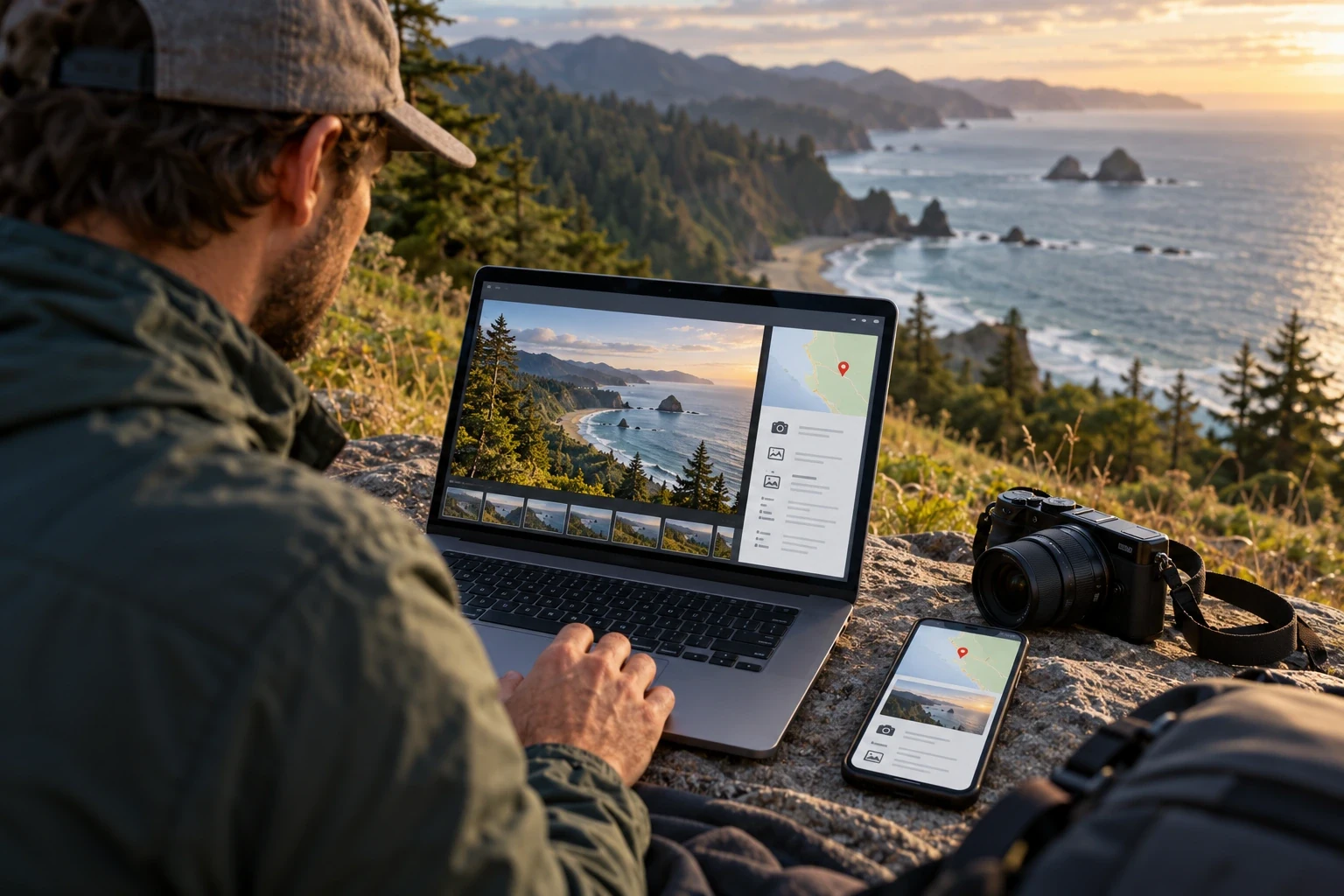
The metadata in an image can be beneficial. For example, a photographer might require the author and copyright information for an image. A newsroom can use the location and date/time that an image was taken to sort through images. The issue with metadata isn’t about if all metadata is bad; it’s about whether or not the image that is shared has more metadata associated with it than the person receiving the image requires.
Three places to inspect
- 01Embedded fieldsGPS, capture time, camera, creator, caption, and rights tags.
- 02File and message contextFilename, folder path, email subject, and sharing metadata.
- 03Visible pixelsSigns, landmarks, reflections, addresses, people, or screens.
Why a location tag can reveal more than a city
The coordinate may identify the exact building, road, or personal property being depicted. Depending upon the accuracy of the coordinate and the subject matter of the photograph (i.e. public place vs. residence/workplace/school/frequent visit location), there may be varying degrees of risk. Consider what a person viewing your post may assume after reviewing both your photograph and any accompanying text/caption/other posts.
When Camera has access to Location Services, Apple states that you can add location data (latitude/longitude) to your pictures and/or video. Apple also notes that if you share a photo, the recipient may have the ability to view the location information embedded within that photo. If your workflow does not require location data to be collected, turn off collection for all subsequent captures. If your workflow does not require location data to be included in an export, then remove the location data from that specific export. [1]
A timestamp and camera type can be used by an individual to associate an image to a public event or other scheduled activity. A file name may disclose the name of the project or location even when GPS data has been deleted. Examine the image, the metadata, and the associated text together as a single entity.
Know where metadata can live
The use of different containers or "chunks" allows some of the metadata groups (such as Exif, IPTC, and XMP) that are included in JPEG files to be preserved when edited by a computer program. However, many times programs will delete other groups. ExifTool has a comprehensive list of all of the formats it supports and states that not every metadata group is removable from each format. [6]
A photo-management application may maintain its own location data (database/cloud) that is distinct from the data contained within the file structure of a exported image. While removing a location "pin" from a photo library display may not affect all original files, shared albums, sidecars, or copies previously provided to others.
The file metadata (or other information) and the host service’s metadata (or other information) are separate. In addition to the image data, the site will probably have some information about the uploaded file such as when it was uploaded, what the user ID of the person who uploaded it is, the name of the file being shared, etc., on a server log or account record. When you remove EXIF from an image, you are removing data that is embedded in the image and that can be identified and changed by the program you use to remove EXIF. You are not removing any data that was logged on a server or stored in an account.
| Data location | Example | What to inspect |
|---|---|---|
| Inside the image file | EXIF GPS, capture time, IPTC caption, XMP fields | Read the exported file with a metadata tool |
| Photo library or cloud service | An estimated place or album location | Review that service’s sharing and export behavior |
| Filename and surrounding text | Street name in filename or a revealing caption | Rename the copy and review its message context |
| Visible pixels | Street sign, address, map, reflection, school logo | Inspect and crop or redact the image itself |
Inspect the file you are about to send
Do not check the original camera file assuming that an exported version will have the same meta-data. Image editing programs, social media sites, messaging applications, and photo storage services can change files when they are processed. Save the actual exported file to a specified directory, and then inspect that file prior to attaching or uploading it.
ExifTool can generate reports that group the metadata, allowing you to easily identify multiple occurrences of the same tag. Reading all of the metadata is helpful during the initial exploration phase, while a targeted search for GPS information will be much faster if you're assessing a location-based risk. To protect your privacy, generate the report on your own machine since the metadata may contain names, coordinates, and/or device identification. [6]
Visual inspection of the results from a command-line summary cannot be substituted for actual viewing of the result. Inspect the resulting image to ensure that you have retained the desired crop, orientation, and level of detail. When your program indicates issues (warning or unsupported), do not assume that because the GPS field is blank that all metadata has been removed.
Remove metadata on Windows with a verifiable copy
On Windows, you can use a command-line tool like ExifTool to create a process that will be consistent regardless of whether or not your photo viewing software exposes specific property options. When working with a single photo, you should preserve the original and save the modified version in a new file. If you are creating a JPEG copy, ExifTool can remove GPS tag(s) or all writable metadata, and then verify the results.
The command exiftool -gps:all= -o cleaned.jpg photo.jpg will strip only GPS metadata from the copy of the photo. If you want to delete all removable metadata, you can run the command exiftool -all= -o cleaned.jpg photo.jpg. However, running the second command may cause loss of some of the creator, rights and/or color related metadata that is still useful. Therefore, you should only run the second command if you are willing to lose those types of metadata. [6]
In addition, if you wish to use a graphical user interface (GUI) to remove metadata from your files, you should view the properties of the file you are working on, then search for controls related to the file's operating system-related metadata or other personal information. The fields that may be removed via a GUI will vary based upon both the type of file you are editing and the version of Windows you are running. Finally, once you have used a GUI to remove metadata from a file, you should verify whether all metadata has been removed from the exported version of the file using a separate metadata viewing tool rather than assuming that all metadata was successfully deleted.
Use Photos and sharing controls on iPhone or Mac
Apple has provided an explanation for how to check where your photos are taken using the Photos app on your iPhone or iPad, then use "Adjust Location" to remove the location from the photo by choosing "No Location." You can turn off the "Location" option in the Share Sheet prior to sharing. Because menu names can change as new operating system versions are released, you should use the most recent instructions for your specific device, and always double-check the final exported file. [1]
If you want to make sure your camera won't collect your location with each new photo you take, then according to Apple, go to Settings → Privacy & Security → Location Services → Camera → Never. This will stop the collection of location data going forward for the Camera app, but won't delete the location data that was collected in past photos and won't delete the location data from the copies of those photos that have been sent out.
The Mac Photos app is able to identify and hide location data for a user's selected photos. However, when exporting an edited version of those photos, do not assume that the exported image will have the exact same metadata as the original. In other words, although you may think that the two files are identical, the process of editing has altered the metadata. Therefore, it is important to treat the exported file as a unique entity, and not simply as a copy of the original. Additionally, it is highly recommended to keep a backup of each of your original files. This will allow you to make changes to your original files in the future without losing the ability to access the original versions.
Apple Photos: remove location from the outgoing copy
- 01ReviewOpen photo information and confirm whether a location is attached.
- 02AdjustChoose No Location or disable Location in sharing options.
- 03ExportSave or send the intended copy without changing the archive master.
- 04VerifyRead the exported file and inspect the visible scene.
Turn off camera location on Android devices
Camera labels are unique to each manufacturer. For example, Google Photos Help provides examples of "Save Location" on Google devices, "Location Tags" on Samsung devices, and there are many other variations based upon the manufacturer. Before taking a picture, disable the camera app's location feature when you don't need GPS. [2]
Google Photos identifies location data from your camera's image files versus what it thinks is the location from your image content or other images. According to its help page, you cannot edit or delete location data added to your photos by your camera in Google Photos. However, you can change or remove location data identified through its location identification process. To modify the GPS tag added to your image file by your camera, you will need to find a way to edit the actual image file with some type of software program (or tool). [3]
Once you've exported your image, examine the exported version using a metadata viewer. The metadata on a photo shared by a photography app as a transformed or resized version can vary from the original. Don't believe that because a map pin disappeared from your photo library, so too did the recipient's download lose its GPS coordinates.
| Platform | Useful documented control | Scope to remember |
|---|---|---|
| iPhone and iPad | Photos: No Location; share sheet Location toggle | Review the exported copy; old shared copies remain |
| Mac Photos | Image > Location > Hide Location | Library display and exported file are separate checks |
| Google camera devices | Camera setting: Save location | Controls future capture, not old photo bytes |
| Samsung camera | Camera setting: Location tags | Wording and behavior can vary by software version |
| Windows | ExifTool read/write on a copy | A metadata reader should verify the actual output |
Remove GPS or remove all metadata deliberately
A simple removal of just the GPS data can allow you to keep the creator credit or copyright field intact for recipients. However, while removing all writable metadata is a much more complete method of cleaning up metadata, it can also destroy other important metadata such as orientation, color profile, editing history, and rights information which are crucial to subsequent workflows. Therefore, make sure to consider this trade-off explicitly prior to executing a batch process.
ExifTool states that there are some groups of metadata that cannot be deleted. In addition, if you delete all metadata from a JPEG file you might lose color space information, which could potentially alter the image's appearance. The ExifTool documentation provides several methods for preserving only certain tags. It is important to note that you should be careful when deleting metadata from proprietary RAW files. Always work on a duplicate copy of the file and use the appropriate format-specific instructions. [6]
A platform can automatically re-encode your image and remove some of the metadata from it. However, “some” does not mean that all of the GPS, IPTC, XMP, or other application specific metadata has been removed. You should verify each type of file that you intend to post. When working on sensitive projects, utilize a tool and process that has had its actions verified through representative samples.
Screenshots still deserve a privacy review
The capture is not a photo taken with a camera, however, it is a graphic image with its own set of data and environment. A capture might also have a time stamp, application name, editor input author information, or data added through a future export. Examine the physical file before assuming that because of how the file was created, it will be safe.
Pixels contain much more than EXIF blocks: Maps, Delivery Labels, Faces, Home Screens, Browser Tabs, Email Addresses, Access Tokens and Reflections. In order to redact visually identifiable information (pixels), you must either crop the image or use opaque redaction to cover the pixels. Metadata removal does not remove pixels.
For a bug report, the screenshot must provide enough context so that we can reproduce the problem, but not so much context as to reveal other customers' personal information. Refer to the bug-report screenshot guide for how to take and redact screenshots. For a client handoff, verify that the image is correct, and that the review link has the proper permissions review link.
- Read all embedded location, date, creator, and device fields.
- Inspect the visible image for signs, addresses, account details, and reflections.
- Create a copy and preserve the original if it is needed for records.
- Verify the exact file that will be shared, not a different library item.
A synthetic before-and-after inspection
A controlled metadata check may be performed on a synthetic JPEG that has been created with intentional EXIF fields. The image used for this test is not a photo, and therefore the GPS coordinates contained within the image are only for testing purposes, not to represent where the image was taken. Prior to processing, ExifTool can provide information regarding the file type, size, description, date field and GPS coordinates of the image.
After decoding and then re-encoding the synthetic JPEG, another ExifTool scan did not find any EXIF GPS fields within this output. A different metadata reader confirmed there was no EXIF block within the processed copy. These results apply only to the tested fixture and processing settings.
This example uses a synthetic jpeg and does not necessarily provide the same outcome for all images formats, metadata namespaces, transformations or export paths. You will need to repeat the before/after comparison with the specific file(s) that you intend to share, and also assess the visual contents of the image(s) independently.
| Inspection | Synthetic JPEG before processing | Re-encoded output |
|---|---|---|
| File type and size | JPEG, 800 × 520 pixels | JPEG, 800 × 520 pixels |
| Description | Test image only; no real photograph | Absent from EXIF output |
| GPS fields | 12.345678 N, 45.678901 E test values | No EXIF GPS values returned |
| Capture time | 2026:10:31 12:00:00 synthetic field | No EXIF DateTimeOriginal returned |
| Interpretation | Metadata-bearing fixture created for the test | Metadata removed from this tested output |
Test JPEG metadata before and after re-encoding
 Before: synthetic EXIF fields present
 After: EXIF block absent
What image re-encoding can and cannot remove
Image processing software typically decodes an image from its original file, then creates another encoded image in a different file. This may result in some of the image's metadata (EXIF) being lost or altered. The amount of loss or change depends upon the type of image being uploaded, the image decoder used to read the uploaded image, and the export options selected when creating the new image. Simply because you successfully uploaded your images to this site, does not mean you know what metadata has been lost.
Image metadata may contain other types of data including IPTC, XMP, specific fields for the type of container the image is stored in, as well as data stored in a photo library that is separate from the image itself. There is no software available today that will be able to remove the names, locations or landmarks contained within the pixel of the image.
Do not assume that an image processing stage will eliminate each of your fields. Examine the actual output file using a metadata examination tool, and then inspect each pixel separately. Save your original if you want to maintain your evidence or evaluate your results.
Build a verify-first routine for photos and screenshots
Begin with the exact file that will be sent, not the first photo taken by your camera. Look at this file to find any GPS, date, device, creator, comment, and other descriptions. Only remove those items that are not relevant to the situation in which you are sending the file, but keep a copy of the original file if there is a need to maintain rights or archival information.
Then review the results of your independent reader and view the full-size image. Determine if the image remains in the proper orientation, is properly cropped, contains the correct colors, and is of high quality. Verify that the file name and attached message do not contain any evidence of what was removed from the image itself.
For each of your recurring processes, make sure you have documented the allowed input formats, what version of the tool you used to run the process, how to run the command to start the process, and provide examples of tests you use to verify that the process is working correctly. Changes in your image library or the export options for your images will affect how the metadata for those images behaves. When there are updates made to either the decoding process, output format, or storage location of your images, your team must rerun their checks.
- 01
Choose the exact outgoing copy
Export or duplicate the file so the original remains available for editing or records.
- 02
Inspect metadata and pixels
Check GPS, time, device, creator, caption, filename, and visible location clues.
- 03
Remove only what is appropriate
Use device sharing controls or a tested metadata editor, preserving useful rights data if required.
- 04
Verify after export
Read the final copy again with a metadata tool and open it visually before sending.
Finish with the right privacy claim
The safest useful claim you can make about your work is specific, such as "The tested output no longer contains the EXIF GPS fields that were reviewed." This will tell the reader what you reviewed. Do not make a general claim like "the photo contains no identifying data" without first reviewing all of the following: other metadata namespaces, filenames, account context, and the visible scene.
Removing metadata is not proof of ownership, permission, copyright approval, or adherence to a specific policy. The decision regarding metadata depends upon how the image was produced, who is featured within the image, the relevant agreement, and the platform on which the image will be displayed.
A good image-sharing process makes it simple to confirm the copy of the image you have shared and provide clear guidelines regarding how users can view it. If the image being shared is private, review the access control guide prior to providing a link. When images are included in emails, follow the email image fallback and privacy checklist.
- The exported file, not just the library original, was inspected.
- Location metadata and visible location clues were reviewed separately.
- The tool’s limits and supported formats are understood.
- The privacy statement describes only the checks that were actually performed.
Frequently asked questions
Does removing EXIF remove GPS location?
It can, if the tool removes the GPS fields in the actual outgoing copy and no other location metadata remains. Verify the exported file. A photo library may also store separate location data, and visible landmarks remain in the pixels.
How do I remove GPS data on an iPhone?
Apple documents a Photos option to set a photo to No Location and a Location toggle in sharing options. You can also disable Camera access to Location Services for future captures. Inspect the file you send, because the original and export may differ.
Can Google Photos remove GPS added by the camera?
Google Photos documentation says you can edit or remove estimated locations, but a location automatically added by the camera cannot be removed there. Turn off camera location for future images or use a metadata tool that modifies the actual file, then verify the result.
Do screenshots contain GPS metadata?
It depends on the capture and export path. A screenshot is still an image file and can receive metadata from an editor or app; its pixels may also expose a map, address, or account detail. Inspect the exact file rather than assuming it has no metadata.
Does removing all metadata reduce image quality?
Deleting metadata does not necessarily change pixel values, but some tags affect orientation or color interpretation, and an image re-encode can change compression or color. ExifTool warns that broad deletion can remove color-space information. Keep the original and inspect the cleaned copy.
Does image re-encoding remove all photo metadata?
No. Re-encoding can remove some embedded fields, but behavior depends on the format and processing path. Check the exported file for metadata and inspect the pixels for identifying details.
Sources and further reading
References are linked beside the relevant claims. Source pages were checked on the dates shown; product documentation and standards may change.
- [1]Manage location metadata in Photos ↗
Apple Support · Checked
- [2]Change your camera location settings ↗
Google Photos Help · Checked
- [3]Understand, find and edit your photos’ locations ↗
Google Photos Help · Checked
- [4]What is photo metadata? ↗
IPTC · Checked
- [5]IPTC Photo Metadata User Guide, November 2025 ↗
IPTC · Published 2025-11-26 · Checked
- [6]ExifTool command-line reference ↗
ExifTool · Checked
- [7]Image metadata ↗
Microsoft Learn · Checked